Is your laptop fan making so much noise it sounds like a jet engine? You’re not alone. Laptop fans often become noisy when they’re working overtime to cool your computer down.
To fix a loud laptop fan, start by placing your laptop on a hard, flat surface, cleaning the air vents, and closing unnecessary programs running in the background. These simple steps can make a big difference in reducing fan noise and improving your laptop’s performance.
Sometimes the fix is as easy as updating your drivers or using a cooling pad. For persistent issues, applying machine oil to the fan base with a syringe has helped many users quiet their noisy fans. Regular maintenance will not only reduce noise but also extend your laptop’s life.
How to Fix a Loud Laptop Fan
A loud laptop fan is usually a sign that your computer is working harder than it should—or that something is blocking proper cooling. The good news? In most cases, you can fix it yourself.
Here’s a step‑by‑step guide to diagnosing and fixing a noisy laptop fan.
Why Is Your Laptop Fan So Loud?
Common causes include:
- 🔥 Overheating
- 🧹 Dust buildup inside the laptop
- 🖥️ Too many background programs
- 🎮 High CPU/GPU usage (gaming, video editing, etc.)
- 🛠️ Old thermal paste
- ⚙️ Fan settings set to maximum performance
- 🔌 Malware or runaway processes
Step‑by‑Step Fixes
1. Check CPU Usage (Quick Fix)
Sometimes the fan is loud simply because your CPU is overloaded.
On Windows:
- Press Ctrl + Shift + Esc
- Open Task Manager
- Click the CPU column to sort by usage
- End unnecessary high‑usage tasks
On Mac:
- Open Activity Monitor
- Click the CPU tab
- Close resource-heavy apps
✅ If CPU usage drops, the fan noise should reduce within a minute.
2. Restart Your Laptop
A simple restart can:
- Stop stuck processes
- Clear memory
- Reset fan behavior
It’s quick and often surprisingly effective.
3. Improve Airflow
Make sure your laptop can breathe.
✅ Use it on:
- A desk or hard surface
❌ Avoid: - Beds
- Blankets
- Pillows
- Your lap for long periods
Optional upgrades:
- Cooling pad
- Laptop stand
4. Clean the Vents (External Cleaning)
Dust buildup is one of the most common causes.
What you need:
- Compressed air
- Soft brush
Steps:
- Turn off and unplug your laptop
- Blow compressed air into vents in short bursts
- Hold the fan in place (if accessible) to prevent overspinning
⚠️ Never use a vacuum directly on vents—it can cause static damage.
5. Clean the Inside (Advanced)
If you’re comfortable opening your laptop:
- Power off and unplug
- Remove the back panel
- Carefully clean:
- Fan blades
- Heat sink
- Internal vents
If you’re unsure, take it to a repair shop.
6. Update Your System and Drivers
Outdated software can cause overheating issues.
- Update your operating system
- Update graphics drivers
- Update BIOS/firmware (if available)
7. Adjust Power Settings
Windows:
- Go to Control Panel → Power Options
- Choose Balanced
- Click Change advanced power settings
- Set Maximum processor state to 85–95%
Mac:
- System Settings → Battery → Enable Low Power Mode
This reduces heat generation.
8. Scan for Malware
Cryptominers and malicious apps can max out your CPU.
- Run Windows Defender or another trusted antivirus
- Remove suspicious programs
9. Replace Thermal Paste (Advanced Users)
Old thermal paste dries out over time.
Symptoms:
- Laptop overheats quickly
- Fan constantly loud even when idle
Replacing it can significantly reduce temperatures—but it requires careful disassembly.
If unsure, have a technician do it.
10. Replace the Fan (If It’s Physically Loud)
If the fan:
- Makes grinding noises
- Rattles
- Clicks
It may be worn out and need replacement.
When to See a Professional
Seek repair help if:
- Laptop shuts down from overheating
- Fan doesn’t spin at all
- You smell burning
- Internal cleaning feels risky
Quick Troubleshooting Checklist ✅
- Restarted laptop
- Checked CPU usage
- Closed heavy apps
- Cleaned vents
- Updated drivers
- Adjusted power settings
- Scanned for malware
How to Prevent Loud Fans in the Future
- Clean vents every 3–6 months
- Avoid soft surfaces
- Don’t block air vents
- Keep software updated
- Use a cooling pad for heavy tasks
Final Thoughts
A loud laptop fan is usually fixable without expensive repairs. Start with software checks, then move to cleaning and airflow improvements. In most cases, dust buildup or high CPU usage is the culprit.
If you’d like, tell me your laptop model and what it’s doing—I can give more specific troubleshooting steps.
Key Takeaways
- Place your laptop on a hard surface and clean vents regularly to prevent overheating and reduce fan noise.
- Close background programs and update drivers to decrease system load and fan activity.
- Consider using cooling pads or lubricating the fan for persistent noise issues.
Understanding Laptop Cooling and Fan Noise
Laptop fans are essential components that keep your computer running at safe temperatures. When these fans become noisy, it often signals an underlying issue that needs attention.
The Role of Fans in Laptop Cooling
Laptop fans work by drawing cool air in and pushing hot air out of your system. They’re triggered when your computer’s internal temperature rises above certain thresholds.
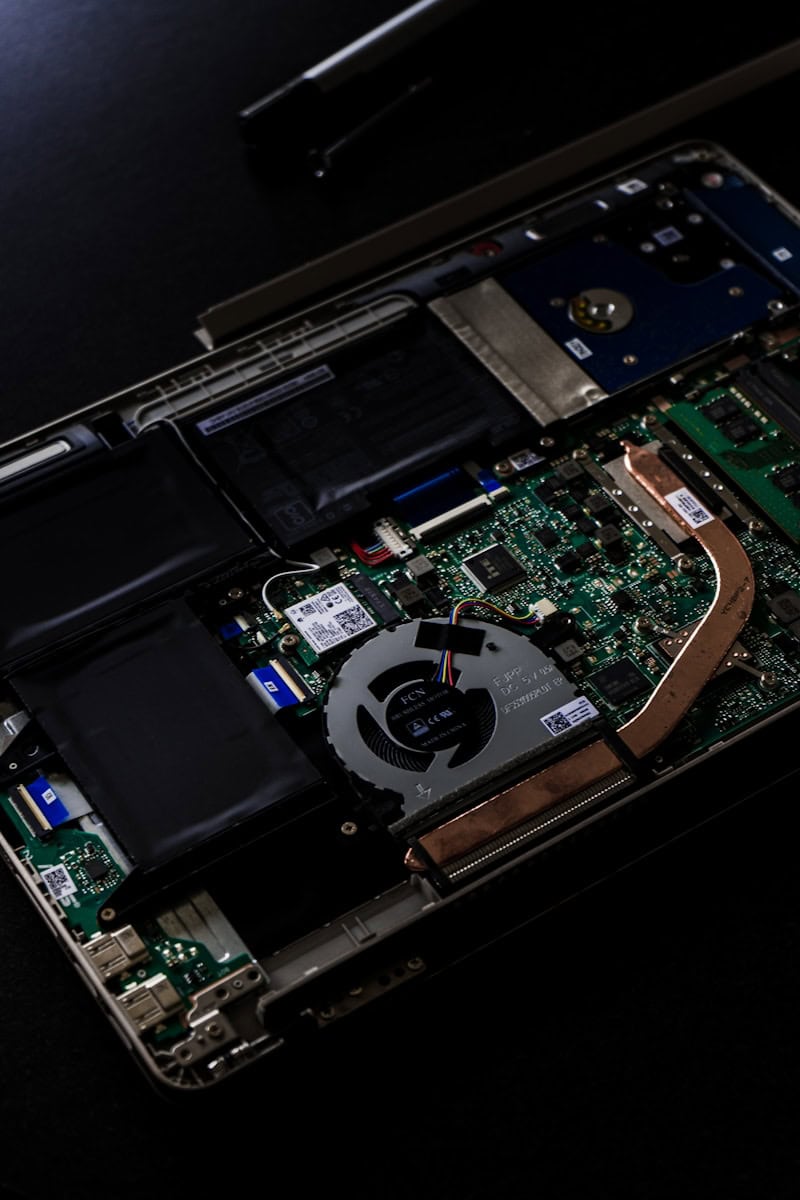
Most laptops have one or two small fans connected to heat sinks – metal components that absorb heat from the processor. When your computer performs demanding tasks like gaming or video editing, it generates more heat, causing fans to spin faster.
Fan speed is controlled by your computer’s BIOS (Basic Input/Output System), which monitors internal temperatures. As temperatures climb, fan speeds increase automatically to provide more cooling. This variable speed design helps balance cooling needs with noise levels.
Without proper cooling, laptops can experience:
- Reduced performance (thermal throttling)
- Component damage
- Shortened lifespan
- Unexpected shutdowns
Common Causes of Loud Laptop Fans
Dust buildup is the most frequent cause of noisy laptop fans. Over time, dust collects on fan blades and vents, forcing fans to work harder. This creates both noise and reduces cooling efficiency.
High CPU usage from resource-intensive programs or too many background applications can overwork your processor. When checking for this issue, look at your Task Manager to identify programs consuming excessive resources.
Poor ventilation also contributes to fan noise. Using laptops on soft surfaces like beds or couches blocks air vents. Always place your laptop on hard, flat surfaces to allow proper airflow.
Age and wear can cause fan bearings to deteriorate, resulting in grinding or rattling sounds. Older laptops might need fan replacement if cleaning doesn’t resolve the noise.
Software issues, including outdated drivers or power management settings, sometimes cause fans to run at maximum speed unnecessarily.
Diagnostic Steps for Noisy Laptop Fans
Before trying to fix a loud laptop fan, you need to identify what’s causing the noise. The right diagnosis will help you choose the best solution for your specific problem.
Checking CPU Usage and Task Manager
Task Manager is a useful tool for finding out if your laptop fan is loud because your computer is working too hard. When programs use too much CPU power, your laptop heats up and fans spin faster to cool it.
To check this:
- Press Ctrl+Alt+Delete and select “Task Manager”
- Look at the “Processes” tab to see what’s running
- Sort by “CPU” to find programs using the most resources
If you see programs using 80-100% of your CPU when you’re not doing much, they might be the culprit. Background programs often cause this problem without you knowing. Try closing unnecessary apps or browser tabs to reduce CPU load.
Sometimes startup programs run without your knowledge. Click the “Startup” tab to disable programs you don’t need running when your computer starts.
Monitoring CPU Temperature
High CPU temperature is a common reason for noisy fans. Your laptop’s cooling system works harder when temperatures rise, causing louder fan noise.
You can check your CPU temperature using free tools like:
- HWMonitor
- Core Temp
- SpeedFan
Normal laptop CPU temperatures usually range between 50-80°C (122-176°F) when idle or doing light tasks. If your CPU consistently runs hotter than 80°C, your fan noise is likely a cooling issue.
Temperature spikes during gaming or video editing are normal, but constant high temperatures during basic tasks suggest problems with cooling. Check if temperature drops after cleaning vents or using a laptop cooling pad.
Routine Maintenance to Prevent Fan Noise
Regular upkeep of your laptop is crucial for keeping fan noise in check. Most fan problems stem from dust buildup and poor airflow, but simple maintenance can prevent these issues.
Internal Cleaning Strategies
Cleaning the inside of your laptop every 3-6 months is essential to prevent fan noise. Begin by powering off your device completely and disconnecting all cables. Use compressed air to blow dust from vents – but always hold the fan blade steady while doing this to prevent damage.
For deeper cleaning, you may need to open your laptop case. Check your manual first, as some warranties become void if you open them. Once inside, use compressed air in short bursts to remove dust from:
- Fan blades and housing
- Heat sinks
- Air intake/output vents
- Internal components
A small, soft brush can help dislodge stubborn dust. Never use vacuum cleaners directly on components as they can create static electricity.
Relevance of Dusted Components
Dust-covered components directly impact your laptop’s performance and fan noise. When dust collects on cooling elements like heat sinks and fans, heat transfer efficiency drops dramatically. This forces your cooling system to work harder, resulting in louder fan operation.
The CPU and GPU generate the most heat in your laptop. When dust insulates these parts, temperatures rise quickly. Your laptop responds by increasing fan speed to compensate, creating more noise.
Key components to keep dust-free include:
| Component | Why It Matters |
|---|---|
| Heat sinks | Primary cooling elements that disperse heat |
| Fan blades | Push air through the system |
| Air vents | Allow proper airflow in and out |
| CPU/GPU | Main heat generators |
Even a thin layer of dust can reduce cooling efficiency by 30%. Clean components allow proper airflow and keep temperatures lower, so fans can run at slower, quieter speeds.
Advanced Solutions for Persistent Fan Noise
When basic troubleshooting doesn’t solve your laptop fan problems, it’s time to consider more technical solutions. These approaches may require some technical knowledge but can fix stubborn fan issues.
Assessment of Motherboard and CPU Health
Start by checking your laptop’s overall health. High CPU usage often causes fans to run constantly. Open Task Manager (Ctrl+Alt+Delete) to see which programs are using the most resources. End any unnecessary processes.
Download hardware monitoring software like HWMonitor or Core Temp to check your CPU temperature. Normal temperatures usually range between 30-45°C when idle and 60-85°C under load. If your laptop runs hot even when idle, you might have a deeper issue.
Check your BIOS settings. Some laptops allow you to adjust fan control policies. To access BIOS, restart your computer and press the designated key (often F2, F10, or Delete) during startup.
Dust buildup on the motherboard can cause overheating. If comfortable doing so, carefully open your laptop following the manufacturer’s instructions and use compressed air to clean dust from components.
Replacing or Repairing Laptop Fans
When a fan makes grinding, clicking, or whining noises, it likely needs replacement. First, identify your laptop’s exact model to find compatible fans. Most replacement fans cost between $10-30.
Before ordering, check if your laptop is still under warranty. Fan replacement might be covered, saving you money and risk.
To replace a fan:
- Power down completely and unplug the laptop
- Remove the battery if possible
- Follow a repair guide specific to your model
- Carefully disconnect the old fan cable from the motherboard
- Remove mounting screws and the old fan
- Install the new fan and reconnect all cables
- Apply fresh thermal paste to the CPU if needed
If you’re not comfortable opening your laptop, professional repair services typically charge $50-100 for fan replacement. Best Buy’s Geek Squad or local computer repair shops offer these services.
Safe Cleaning Procedures for Laptop Fans
Cleaning your laptop fan requires careful handling to avoid damaging sensitive components. The right tools and techniques can help you remove dust without causing static electricity damage or breaking delicate fan blades.
Using Compressed Air Correctly
Compressed air is the safest and most effective tool for cleaning laptop fans. Purchase canned air specifically designed for electronics—never use an air compressor or your breath, as both can introduce moisture.
Before cleaning, shut down your laptop completely and unplug it. Remove the battery if possible. Find the air vents, usually located on the sides or bottom of your laptop.
Hold the compressed air can upright to prevent liquid propellant from spraying out. Keep the nozzle at least 2-3 inches away from the vents.
Use short bursts rather than continuous spraying. This prevents the fan from spinning too fast, which could damage the bearings.
Pro tip: Clean your laptop in a well-ventilated area and consider wearing a mask to avoid breathing in the dust that will blow out.
Utilizing an Anti-Static Wrist Strap
Static electricity can seriously damage computer components. An anti-static wrist strap prevents this risk during deeper cleaning procedures when you need to open your laptop case.
The strap connects your body to a grounded object, preventing static buildup. Attach one end to your wrist and the other to a metal part of the laptop frame or a grounded metal object.
Never touch circuit boards or components without proper grounding. Even a tiny static discharge—too small for you to feel—can fry sensitive parts.
If you don’t have an anti-static strap, you can reduce risk by:
- Working on hard surfaces (not carpet)
- Touching a metal object before handling components
- Avoiding working in dry environments
Remember to consult your laptop’s manual before opening the case, as this may void warranties.
Noise Reduction Accessories and Equipment
Specialized accessories can help manage laptop fan noise without compromising your computer’s cooling needs. These tools work by improving airflow and providing alternative cooling methods.
Selecting and Using Laptop Cooling Pads
Cooling pads are external platforms that sit beneath laptops to improve airflow. They come with built-in fans that pull heat away from your device. When shopping for a cooling pad, look for models with adjustable fan speeds to balance cooling power with noise levels.
The number of fans matters too. Pads with multiple smaller fans often distribute cooling more evenly than single-fan models. Some advanced cooling pads come with metal mesh surfaces that help dissipate heat even when the pad’s fans are set to lower, quieter speeds.
Position is important for effectiveness. Place the cooling pad on a hard, flat surface rather than on soft surfaces like beds or couches. This prevents blocking air intake vents.
Some manufacturers like Noctua make low-noise adapters that work as resistors. These reduce voltage to the fans, lowering their speed and noise. These adapters can be useful additions to your cooling setup.
For extreme noise concerns, consider sound-dampening materials around your workspace. Some users build simple enclosures with sound-absorbing foam to contain laptop noise while ensuring proper ventilation.
Best Practices for Prolonging Fan Lifespan
Taking care of your laptop fan can help your computer run better for longer. Here are some simple ways to keep your fans working well.
Keep it clean. Dust is the enemy of good airflow. Clean your laptop’s air vents regularly with compressed air. This prevents dust build-up that makes fans work harder.
Place your laptop properly. Always use your laptop on hard, flat surfaces. Soft surfaces like beds or couches can block air vents, forcing fans to work overtime.
Monitor temperature. High temperatures make fans spin faster. Use software to check your laptop’s temperature and adjust your usage if it gets too hot.
Manage your programs. Close unused applications and browser tabs. Too many running programs increase CPU usage, which heats up your laptop and activates the fans.
Give it breaks. Let your laptop cool down occasionally, especially during intensive tasks like gaming or video editing.
Update your software. Keep your operating system and drivers updated. Modern updates often include power management improvements that help control fan activity.
Consider a cooling pad. For laptops that run hot often, a cooling pad provides extra airflow and reduces strain on internal fans.
Avoid extreme environments. Using your laptop in very hot places forces the cooling system to work harder. Try to work in temperature-controlled environments when possible.
Frequently Asked Questions
Laptop fans can develop various issues that create noise. Fixing these problems often requires specific solutions depending on the source of the noise.
What might cause a laptop fan to make a grinding noise?
A grinding noise from a laptop fan typically indicates a problem with the fan bearings. When bearings wear out or get damaged, they create friction that results in that distinctive grinding sound.
In some cases, dust buildup around the fan mechanism can cause similar noise. The fan might be hitting dust particles or debris that have accumulated inside.
If the grinding persists after cleaning, the fan bearing may be defective and require replacement. This is a common issue that affects laptop fans as they age.
What steps should be taken to clean a laptop fan?
Start by shutting down your laptop completely and unplugging it from power sources. Remove the battery if possible for safety.
Use compressed air to blow dust from air vents while holding the fan blades steady to prevent them from spinning too fast. Excessive rotation can damage the fan motor.
For thorough cleaning, carefully open the laptop case following manufacturer guidelines. Use compressed air and soft brushes to remove dust from the fan and heat sink.
Some users find success using a syringe with machine oil to lubricate the base of the fan, which can help with noise issues in certain cases.
How can I address a noisy fan issue on my Lenovo laptop?
Lenovo laptops benefit from adjusting power settings to reduce CPU usage. Lower the maximum processor state in power options to decrease heat generation.
Update all device drivers, especially those related to power management and system cooling. Outdated drivers can cause improper fan control.
Enable power-saving features through Lenovo Vantage or System Settings. These features help manage system temperature and reduce fan activity.
Place your Lenovo laptop on a hard, flat surface to ensure proper airflow. Soft surfaces like beds or couches can block vents and cause overheating.
What are potential fixes for a loud fan in a Dell laptop?
Check for background programs consuming excessive CPU resources. Use Task Manager to identify and close unnecessary applications.
Clean the air vents and internal components following Dell’s recommended maintenance procedures. Dell laptops often have specific access panels for easier cleaning.
Update the BIOS and system drivers from Dell’s support website. Manufacturer updates often include improvements to thermal management.
Consider using a cooling pad designed for Dell laptops. These external cooling solutions can help maintain lower temperatures and reduce fan workload.
Why does my laptop fan become excessively loud during charging?
Charging generates additional heat inside the laptop as power is converted and the battery charges. This increased heat triggers faster fan speeds.
Some laptops run at higher performance levels when plugged in, automatically switching to power profiles that prioritize speed over temperature control.
The battery itself produces heat during charging. This extra heat source, combined with normal operation, creates more work for the cooling system.
Try charging in a cool environment and ensure all vents remain unblocked during charging sessions to minimize noise.
What could be the reason for a laptop fan to get noisier when the laptop is moved?
Movement can cause temporary changes in airflow patterns inside the laptop. When repositioned, the cooling system might need to adjust to new thermal conditions.
In some cases, components might shift slightly during movement, temporarily affecting how heat transfers within the system.
Older laptops with worn internal parts might have fans that respond differently to positional changes. The fan mount might be loose, causing increased vibration and noise.
If the noise persists after settling in a new position, inspect for any loose parts or check if the laptop is sitting on an uneven surface.