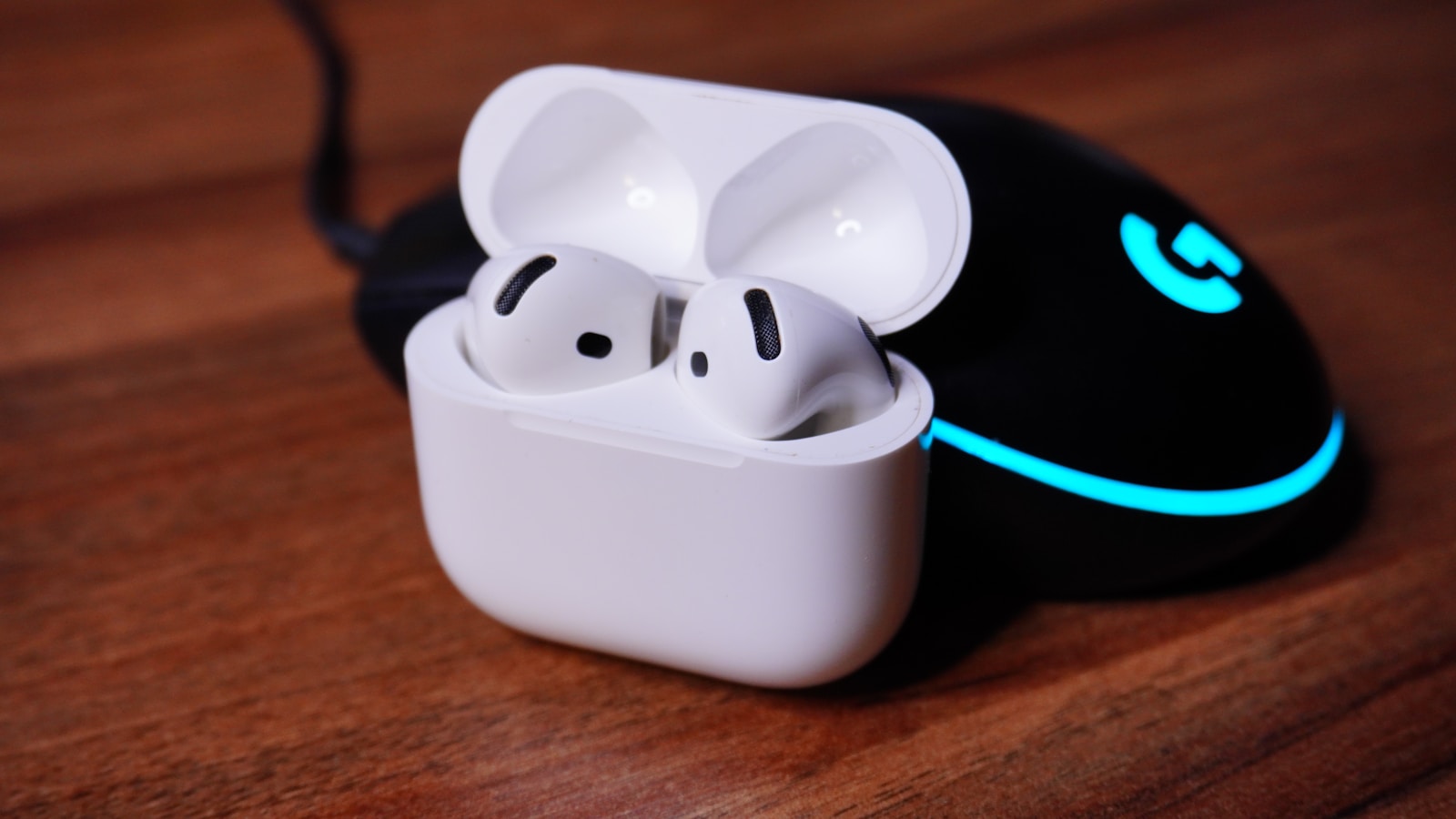
Wondering if you can use your AirPods with Xbox Series X|S? Many gamers want to use their favorite Apple earbuds while playing on Microsoft’s console. Unfortunately, the Xbox doesn’t support Bluetooth audio connections directly, making it impossible to connect AirPods straight to the console. You can’t directly connect AirPods to an Xbox Series X or S because the console doesn’t support Bluetooth audio connections, but there are workaround methods available.
This limitation exists because Bluetooth technology often creates latency issues during gameplay. Xbox relies on its own wireless protocol to ensure lag-free gaming experiences. But don’t worry – there are several workarounds that let you use your AirPods with your Xbox. The most popular method involves using the Xbox remote play feature with your phone.
With remote play, you can stream your Xbox games to your phone, then connect your AirPods to your phone for audio. This method works with both iOS and Android devices and requires minimal setup. Other options include using third-party Bluetooth adapters that plug directly into your Xbox controller or connecting through a smart TV app.
How to Connect AirPods to Xbox Series X|S
Yes, you can use AirPods with an Xbox Series X or Series S — but not directly. The console does not support Bluetooth audio, so AirPods won’t connect the way they do with a phone or laptop (source: Tom’s Guide).
Fortunately, there are two reliable workarounds:
- ✅ Method 1: Use the Xbox App (Free & Easy)
- ✅ Method 2: Use a Bluetooth Transmitter (Best for Low Latency)
Why AirPods Don’t Connect Directly
Unlike the PlayStation 5, the Xbox Series X|S does not offer native Bluetooth audio support (source: SortaTechy). That means you can’t pair AirPods directly through the console’s settings.
Instead, you’ll need one of the following methods.
✅ Method 1: Using the Xbox App (Best Free Method)
This is the easiest and completely free way to use AirPods with your Xbox.
It works by streaming your Xbox audio to your phone through the Xbox Remote Play feature, and then your phone sends the audio to your AirPods.
What You’ll Need:
- Xbox Series X or S
- Smartphone (iPhone or Android)
- Xbox App installed
- AirPods
Step‑by‑Step Instructions:
- Download the Xbox App on your smartphone.
- Sign in using your Xbox account.
- Connect your AirPods to your phone via Bluetooth.
- Open the Xbox App.
- Tap the Remote Play icon (console icon with radio waves in the top right).
- Select “Remote play on this device.”
- Your Xbox audio will now stream to your AirPods while you continue playing on your TV.
(Source: MacObserver)
⚠️ Downsides of This Method
- You may experience slight audio delay (lag).
- Audio quality depends on your Wi‑Fi connection.
- Your phone must remain connected during gameplay.
This method is ideal for:
- Casual gaming
- Chat audio
- Playing late at night
✅ Method 2: Use a Bluetooth Transmitter (Best Performance Option)
If you want lower latency and more reliable audio, a Bluetooth transmitter adapter is the better option.
This small device plugs into:
- The Xbox controller’s 3.5mm headphone jack
OR - The console’s USB port (depending on the model)
You then pair your AirPods to the transmitter instead of the Xbox.
(Source: Headphonesty)
How to Set It Up:
- Plug the Bluetooth transmitter into your controller or console.
- Put the transmitter in pairing mode.
- Open your AirPods case and hold the pairing button.
- Wait for the devices to connect.
- Audio will now play directly to your AirPods.
✅ Advantages
- Lower latency than Remote Play
- More stable connection
- No need to use your phone
- Better for competitive gaming
❌ Disadvantages
- Requires purchasing an adapter
- Adds a small accessory to your setup
Which Method Should You Choose?
| Situation | Best Option |
|---|---|
| Free & quick setup | Xbox App |
| Competitive gaming | Bluetooth transmitter |
| Late-night gaming | Either method |
| Best sound sync | Bluetooth transmitter |
Final Thoughts
While Xbox doesn’t support Bluetooth headphones natively, you can still use your AirPods with either:
- 📱 Xbox App Remote Play (Free)
- 🔌 Bluetooth Transmitter Adapter (Best performance)
If you want the simplest setup, go with the Xbox App.
If you want the best experience, invest in a low‑latency Bluetooth adapter.
Key Takeaways
- AirPods cannot connect directly to Xbox Series X|S due to the console’s lack of Bluetooth audio support.
- The Xbox remote play feature allows players to stream games to their phones and use AirPods connected to the phone.
- Third-party Bluetooth adapters for controllers provide another option for using AirPods while gaming on Xbox.
Understanding the Compatibility of AirPods with Xbox S and Xbox Series X
AirPods and Xbox consoles have compatibility challenges due to differing wireless technologies. While Xbox uses its proprietary wireless protocol, there are several workarounds that can help gamers use their Apple earbuds with their gaming systems.
Bluetooth Connectivity Challenges
Xbox Series X and Series S consoles don’t support Bluetooth audio connectivity natively. This creates a significant hurdle for AirPods users who want to connect their wireless earbuds directly to their Xbox. The reason behind this limitation is that Xbox consoles use a proprietary wireless protocol for accessories.
This protocol works specifically with Xbox Wireless Controllers and officially licensed Xbox headsets. Microsoft designed this system to minimize audio lag during gameplay, which is crucial for competitive gaming.
The lack of direct Bluetooth support means that simply trying to pair AirPods through the Xbox settings menu won’t work. This limitation applies to all Bluetooth headphones and earbuds, not just Apple’s AirPods.
Alternative Solutions for Connection
Several workarounds exist for connecting AirPods to Xbox Series X or S. The Xbox app method lets players stream games to their phone and use AirPods connected to that device. This approach works for both gameplay and chat functions.
Another option involves using a Bluetooth adapter. These small devices plug into the Xbox controller’s 3.5mm headphone jack and create a Bluetooth connection point for AirPods. Quality adapters range from $20-$50.
TV-based solutions work if your television supports Bluetooth output. Players can:
- Connect AirPods to the TV directly
- Use the TV’s Bluetooth menu to pair devices
- Enjoy game audio through AirPods
Some games may have limited compatibility with these workarounds. The Xbox app streaming method offers the most comprehensive solution since it handles both game audio and chat capabilities.
How to Connect AirPods to Your Xbox Using Remote Play
Remote Play offers a smart solution for Xbox owners who want to use their AirPods while gaming. This feature streams your Xbox games to a phone or tablet and lets you use AirPods for audio.
Setting Up Xbox Remote Play
To get started with Remote Play, you first need to adjust settings on your Xbox console. Go to the Settings menu on your Xbox Series X|S and select “Devices & connections.” From there, choose “Remote features” and make sure to enable the “Remote features” option.
Your Xbox needs to be connected to a good Wi-Fi network for optimal performance. Select “Power mode” and choose “Instant-on” rather than “Energy saving” to allow remote connections when your console is turned off.
Test your connection by selecting “Test remote play” to make sure everything works properly. A stable internet connection with at least 10 Mbps download and 5 Mbps upload speeds will provide the best experience.
Pairing AirPods through the Xbox App
First, download the Xbox app on your iOS or Android device if you haven’t already. Sign in with the same Microsoft account you use on your Xbox console.
Connect your AirPods to your phone or tablet by opening the AirPods case near your device and following the on-screen pairing instructions. Once connected, open the Xbox app.
Tap the “Remote play” icon in the top right corner of the app. This looks like an Xbox console with signal waves. Select “Remote play on this device” to establish a connection to your Xbox.
The app will search for and connect to your Xbox. Once connected, all game audio will play through your AirPods as long as the app remains open. You can now use your AirPods for both game audio and voice chat with friends.