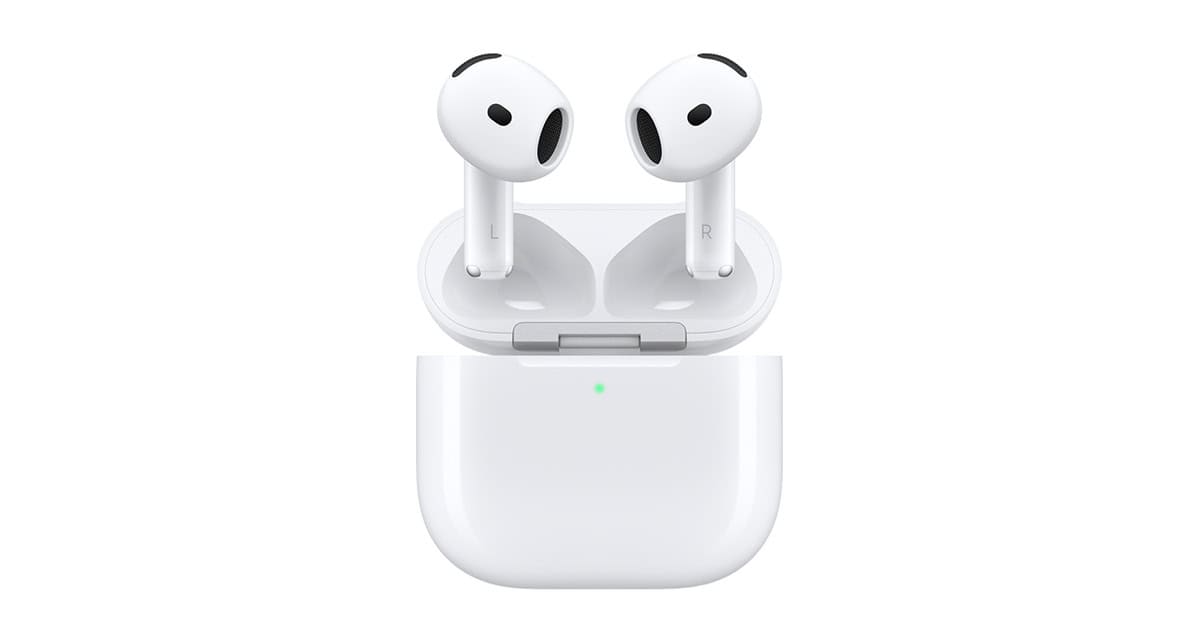
Are you tired of constant AirPods tracking alerts on your iPhone? Those notifications can be annoying, especially when they’re false alarms from your own devices. You can disable AirPods tracking notifications through the Find My app settings or by turning off location services for specific devices. Many iPhone users don’t realize they have control over these alerts, which are designed to help with privacy but often create unnecessary interruptions.
Apple created this feature to help users locate lost AirPods and warn about potential tracking by strangers. The system uses the Find My network to keep tabs on your AirPods Pro, AirPods Max, or regular AirPods. However, the technology sometimes triggers false alarms when it detects your own devices moving with you.
Thankfully, you have options to stop these notifications without giving up all tracking features. You can choose to disable tracking notifications temporarily for a day or permanently in your settings. This gives you back control over your device alerts while still maintaining the ability to find your AirPods if they’re truly lost.
How To Disable AirPods Tracking Notifications
If you’re getting alerts like “AirPods Found Moving With You” or repeated location notifications from your own family member’s AirPods, you’re not alone. Apple sends these alerts as part of its anti‑stalking protection system built into the Find My network.
While these alerts are designed for safety, they can become annoying—especially when traveling with family or sharing devices.
Below are the ways you can stop or reduce AirPods tracking notifications.
Why You’re Getting These Notifications
Apple sends tracking alerts when:
- AirPods that are not connected to your Apple ID are moving with you.
- Someone else’s AirPods are traveling with you over time.
- You’re near AirPods separated from their owner.
The feature is meant to prevent unwanted tracking.
(Source: Headphonesty)
Method 1: Pause the Notification (Temporary Fix)
If you’re traveling with someone whose AirPods are triggering alerts (for example, a spouse or child), you can temporarily pause alerts.
Steps:
- Tap the tracking notification.
- Select Pause Safety Alerts.
- Choose the duration (usually 1 day).
⚠️ Note: This is temporary. Alerts will resume automatically.
(Reference: Apple Community Discussion)
Method 2: Turn Off “Item Safety Alerts” (iPhone)
You can disable Apple’s unwanted tracking alerts entirely.
Steps:
- Open Find My
- Tap the Me tab
- Toggle off Item Safety Alerts
This stops notifications for unknown AirPods and AirTags.
⚠️ Warning: Disabling this reduces anti-stalking protection.
(Source: Beebom)
Method 3: Adjust Find My Sharing (If It’s Family)
If the alerts are from a family member’s AirPods, the best long-term fix is to properly set up sharing.
Option A: Use Family Sharing
Add each other to Apple Family Sharing so devices are recognized within your group.
Option B: Connect AirPods to Your Device
If the AirPods belong to someone in your household, connect them briefly to your iPhone so they’re recognized.
(Source: MacObserver)
Method 4: Disable Find My for AirPods (Owner Only)
If you own the AirPods and don’t want them trackable:
Steps:
- Open Settings
- Tap your Apple ID
- Tap Find My
- Disable Find My iPhone (this disables Find My for AirPods too)
OR
- Open Find My
- Go to Devices
- Select your AirPods
- Remove them from your account
⚠️ Important:
- You won’t be able to track lost AirPods anymore.
- This only works if you are the owner.
(Source: SoundscapeHQ)
Method 5: Reset the AirPods
If AirPods are incorrectly linked or causing repeated alerts:
Steps:
- Put AirPods in the case.
- Hold the setup button on the case until the light flashes amber, then white.
- Reconnect them to the correct Apple ID.
This removes old tracking associations.
(Source: Clario)
Can You Permanently Disable “AirPods Found Moving With You”?
Yes — by turning off Item Safety Alerts in Find My.
However, Apple does not allow selective disabling for specific devices. It’s all or nothing.
(Source: Beebom)
Best Option for Families Traveling Together
If you’re getting constant alerts from your spouse’s or child’s AirPods:
✅ Set up Family Sharing ✅ Keep devices signed into correct Apple IDs
✅ Temporarily pause alerts if needed
This keeps safety features on while minimizing nuisance notifications.
Final Thoughts
AirPods tracking notifications are designed for anti-stalking protection—not surveillance. While they can be annoying in shared environments, Apple limits full disabling to protect user safety.
If you want:
- Temporary relief → Pause alerts
- Permanent stop → Turn off Item Safety Alerts
- Best balance → Use Family Sharing
Key Takeaways
- AirPods tracking notifications can be disabled through the Find My app or by adjusting location services settings.
- False alarms often occur when your iPhone detects your own AirPods moving with you.
- Disabling notifications doesn’t prevent you from using Find My to locate lost AirPods when needed.
Understanding AirPods Tracking Features
AirPods tracking capabilities combine Apple’s location technologies with user settings to help find lost earbuds while raising important privacy considerations. These features work through a complex ecosystem designed to balance convenience with security.
How ‘Find My’ Facilitates AirPods Tracking
The Find My network is Apple’s proprietary system that helps users locate their missing AirPods. This technology uses Bluetooth signals from millions of Apple devices worldwide to detect your AirPods’ location, even when they’re not connected to your iPhone.
When AirPods are misplaced, the Find My app displays their last known location on a map. Users can trigger a sound to play through the AirPods to help locate them nearby. The sound gradually increases in volume, making it easier to find them if they’re wedged between couch cushions or under furniture.
The Find My system also offers the “Notify When Left Behind” feature. This sends alerts when you leave a location without your AirPods, helping prevent loss in the first place. This proactive approach has helped countless users avoid the frustration of lost earbuds.
The Role of Location Services in Tracking
Location Services forms the backbone of AirPods tracking functionality. This system uses GPS, Bluetooth, and crowd-sourced Wi-Fi hotspot locations to pinpoint your AirPods’ position.
To enable tracking, users must:
- Turn on Location Services in Settings
- Enable the Find My app permissions
- Keep Bluetooth active on their devices
Location accuracy varies based on environmental factors. In dense urban areas with many Apple devices nearby, tracking is typically more precise. Rural locations may offer less accurate results due to fewer devices in the Find My network.
When AirPods are separated from their owner, the system can still track them through other Apple devices passing nearby. This crowdsourced approach significantly expands the tracking network’s reach and effectiveness.
Privacy Implications of AirPods Tracking
While AirPods tracking offers convenience, it also raises privacy concerns. The technology that helps find lost AirPods could potentially be misused for unwanted tracking of individuals.
Apple has implemented several safeguards:
- Tracking notifications alert users when unknown AirPods are moving with them
- Sound alerts play from AirPods that have been separated from their owner
- Privacy controls let users manage which devices can see their location
Despite these protections, privacy risks remain. AirPods can be used to track someone’s location without consent if they remain unaware of the tracking notifications. This has prompted Apple to improve its tracking alert system through regular updates.
Users concerned about privacy can disable tracking notifications through the Find My app settings or completely reset their AirPods to prevent unwanted tracking. These options provide control over personal data while maintaining the benefits of location services when needed.
Disabling Tracking and Notifications for AirPods
Apple’s tracking features help find lost AirPods but can sometimes trigger unwanted alerts. You can disable these notifications through several methods depending on your specific needs.
Steps to Disable ‘Find My AirPods’ and Location Sharing
To stop your AirPods from being tracked in the Find My app, users need to remove them from their Apple ID. This process is straightforward:
- Open the Find My app on your iPhone
- Tap the Devices tab at the bottom
- Select your AirPods from the list
- Scroll down and tap Remove This Device
- Confirm by tapping Remove
This action stops the AirPods from sharing their location with your Apple ID. Another option is to go to Settings > Bluetooth, tap the (i) icon next to your AirPods, and select Forget This Device.
Users should note that removing AirPods from Find My will require re-pairing them to use them again.
How to Turn Off ‘AirPods Found Moving with You’ Alerts
These alerts appear when your iPhone detects unknown AirPods traveling with you as an anti-stalking measure. To disable these notifications:
- When you receive an “AirPods Detected Moving With You” alert, tap on it
- Select Continue to view options
- Choose Disable Safety Alerts
- Confirm your choice
For a permanent solution, go to Settings > Privacy & Security > Location Services > System Services, and toggle off Item Safety Alerts.
Users can also tap on the “Instructions to Disable” option when they receive a tracking notification to follow Apple’s guided steps for stopping location sharing from specific AirPods.
Resetting AirPods to Remove Tracking Features
A complete reset returns AirPods to factory settings, removing them from all devices and tracking systems. Here’s how:
- Place AirPods in their charging case
- Open the lid
- Press and hold the setup button on the back for about 15 seconds
- Wait for the status light to flash amber, then white
- Close the lid and re-pair with your devices
This process clears all previous connections and settings. After resetting, the AirPods will no longer be linked to your Apple ID for tracking purposes.
The reset method works for all AirPods models including regular AirPods, AirPods Pro, and AirPods Max, though the exact button locations might differ slightly.