
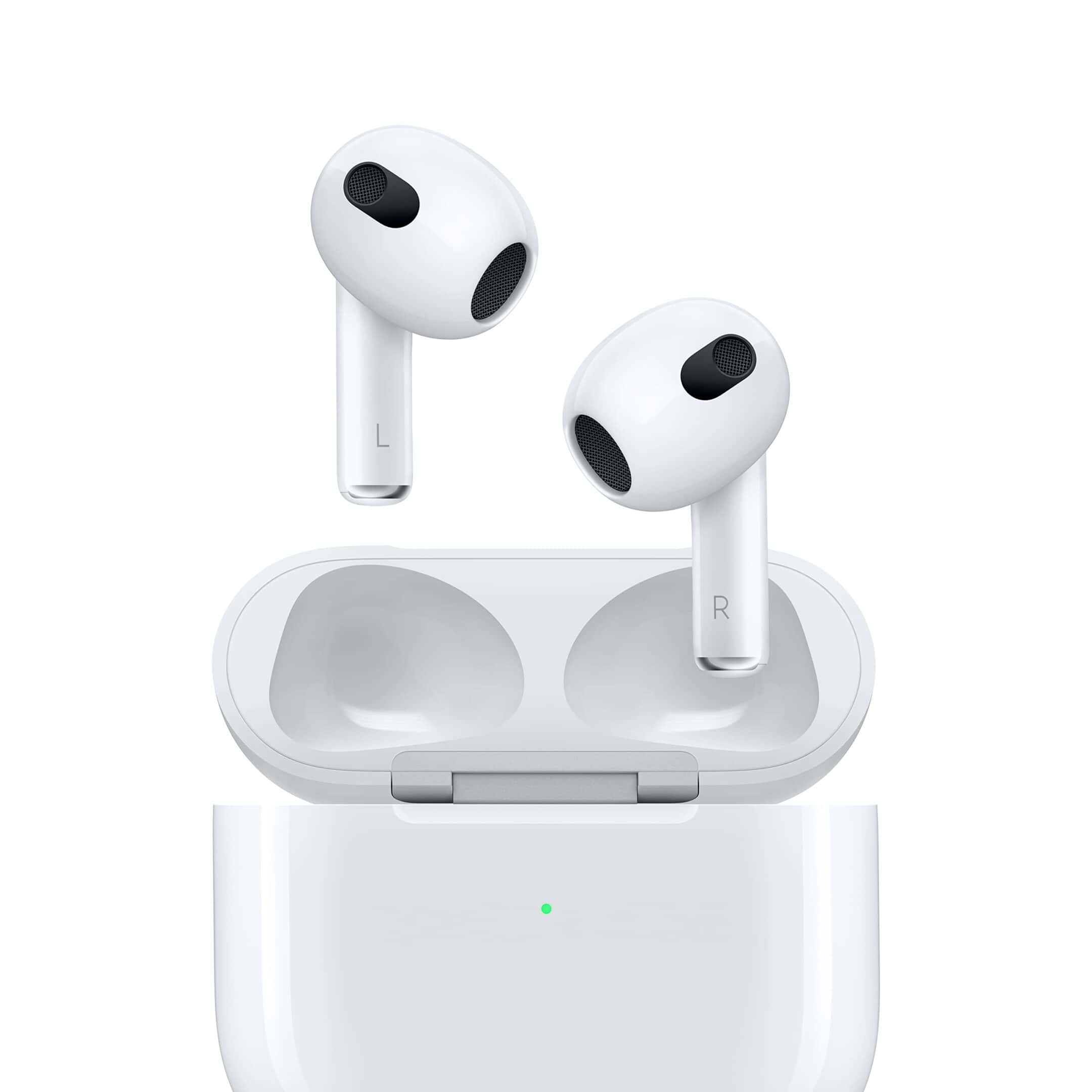
Keeping your AirPods Max up to date ensures you get the best performance and newest features. Apple releases firmware updates for these premium headphones regularly, but unlike iPhone updates, you don’t manually trigger them. To update AirPods Max firmware, place them within Bluetooth range of your iPhone, iPad, or Mac that’s connected to Wi-Fi, then plug them into a charger for at least 30 minutes.
Apple recently released new firmware for AirPods Max on February 25, 2025. These updates often fix bugs and add improvements without any announcement about what changed. The process happens automatically in the background, but there are steps to make sure your headphones get the update.
Anyone can check their current firmware version in a few taps. The update process is simple but requires patience. Users need to keep their AirPods Max connected, charged, and wait for the magic to happen.
How to Update Your AirPods Max Firmware
Apple updates AirPods Max firmware automatically in the background. There’s no manual “Update” button, but you can make sure your headphones are set up correctly so the update installs as soon as it’s available.
What You’ll Need
Before starting, make sure you have:
- An iPhone, iPad, or Mac running the latest version of iOS, iPadOS, or macOS
- Your AirPods Max
- A stable Wi‑Fi connection
- Enough battery on both your AirPods Max and your Apple device
How AirPods Max Firmware Updates Work
- Firmware updates download and install automatically
- Updates usually happen when AirPods Max are charging and near your Apple device
- The process can take 10–30 minutes, sometimes longer
There is no notification when the update completes.
Step‑by‑Step: How to Update AirPods Max Firmware
1. Connect AirPods Max to Your Apple Device
- Put your AirPods Max on your head
- Make sure they’re connected via Bluetooth to your iPhone, iPad, or Mac
2. Connect to Wi‑Fi
- Ensure your Apple device is connected to a Wi‑Fi network
- Firmware updates won’t install over Bluetooth alone
3. Charge Your AirPods Max
- Plug your AirPods Max into a Lightning cable (or USB‑C on newer models)
- Charging increases the chance the update will start
4. Keep Them Nearby
- Place your AirPods Max near your Apple device
- You can take them off—just don’t disconnect them
5. Wait
- Leave everything alone for at least 30 minutes
- Avoid restarting your device or turning off Bluetooth
If an update is available, it should install automatically during this time.
How to Check Your AirPods Max Firmware Version
On iPhone or iPad
- Connect your AirPods Max
- Go to Settings
- Tap Bluetooth
- Tap the ⓘ (Info) button next to your AirPods Max
- Scroll down to Firmware Version
On Mac
- Connect your AirPods Max
- Go to System Settings (or System Preferences)
- Select Bluetooth
- Click the ⓘ (Info) button next to AirPods Max
- Check the firmware version
You can compare this version with the latest firmware listed on Apple’s website.
Troubleshooting: Firmware Not Updating?
If your AirPods Max won’t update, try the following:
- Restart your iPhone, iPad, or Mac
- Toggle Bluetooth off and back on
- Fully charge your AirPods Max
- Forget and reconnect AirPods Max:
- Go to Settings → Bluetooth
- Tap ⓘ → Forget This Device
- Reconnect them and try again
Important Things to Know
- Firmware updates are automatic only
- You cannot force an update manually
- Updates may roll out gradually, so not everyone gets them at the same time
Final Tip
The best way to ensure your AirPods Max stay updated is to regularly:
- Keep your Apple device up to date
- Charge your AirPods Max
- Leave them connected to Wi‑Fi overnight
That’s it—your AirPods Max will handle the rest automatically. 🎧
Key Takeaways
- AirPods Max firmware updates automatically when connected to a paired Apple device and plugged into power.
- Check your current firmware version in the Settings app under Bluetooth settings for your AirPods Max.
- The update process requires at least 30 minutes of charging time with your headphones near your Apple device.
Understanding Firmware and Its Importance for AirPods Max
Firmware acts as the brain behind your AirPods Max, controlling everything from sound quality to battery management. Regular updates help maintain optimal performance and add new features to keep your premium headphones working at their best.
What Is Firmware?
Firmware is specialized software permanently embedded in your AirPods Max hardware. Unlike apps you install on your phone, firmware operates at a much deeper level, controlling basic hardware functions and features.
Think of firmware as the invisible foundation that makes your AirPods Max work properly. It manages everything from battery life to audio processing and connectivity with your other Apple devices.
When Apple engineers discover ways to improve how your headphones work, they package these improvements into firmware updates. Your AirPods Max firmware version determines which features and fixes are available on your device.
For example, the current firmware enables features like spatial audio and seamless device switching. Without proper firmware, these premium features wouldn’t function correctly.
The Role of Firmware Updates
Firmware updates serve several key purposes for AirPods Max owners:
- Bug fixes: Resolving technical issues that affect performance
- New features: Adding functionality that wasn’t available at launch
- Performance improvements: Optimizing battery life and audio quality
- Compatibility: Ensuring your headphones work with new Apple devices and software
Unlike iPhone updates that prompt you to install them, AirPods Max firmware updates happen automatically in the background. This hands-off approach makes them easy to miss.
Apple regularly releases firmware updates to keep AirPods Max running smoothly. These updates typically arrive every few months, with the most recent one rolling out in February 2025 according to 9to5Mac.
Benefits of Updating Your AirPods Max Firmware
Keeping your firmware updated offers several important advantages:
Improved Active Noise Cancellation: Updates often fine-tune the ANC algorithms to better block ambient sounds. This creates a more immersive listening experience, especially in noisy environments.
Better Battery Performance: Firmware updates can optimize power management, potentially extending the battery life of your AirPods Max. This means more listening time between charges.
Enhanced Connectivity: Updated firmware helps prevent connection drops and improves the automatic switching between your Apple devices. The latest update includes significant improvements to the Automatic Switching experience across Apple devices.
New Features: Apple occasionally adds entirely new capabilities through firmware. For example, a recent update added a convenient “press to mute” feature during calls for AirPods Max users.
Staying current with firmware updates ensures you get the full value from your premium headphones investment.
Step-By-Step Instructions for Updating AirPods Max
Updating AirPods Max firmware is a simple process that happens mostly in the background, but there are specific steps users can take to ensure updates install properly. The right setup and connection methods will help the update process go smoothly.
Preparation for the Update Process
Before attempting to update AirPods Max, users should check their current firmware version. On an iPhone or iPad connected to the AirPods Max, go to Settings > General > About > AirPods Max. The firmware version appears in the “Version” field.
Make sure the following conditions are met:
- AirPods Max must have at least 30% battery life
- The charging case should be nearby (though not required)
- iPhone or iPad must run iOS 14.3 or later
- Mac must run macOS Big Sur 11.1 or later
- Bluetooth must be enabled on the device
- The device must be connected to Wi-Fi
It’s also recommended to place the AirPods Max in their Smart Case for several minutes before the update process. This puts them in a low-power state that can help with updates.
Updating through iPhone, iPad, or Mac
Apple does not provide a manual update button for AirPods Max. Instead, updates install automatically in the background when the headphones are connected to an Apple device. To encourage the update:
- Connect AirPods Max to your iPhone, iPad, or Mac via Bluetooth
- Keep the AirPods Max within 30 feet of your device
- Make sure your device is connected to the internet
- Leave the AirPods Max and device together for at least 30 minutes
For best results, users can try this specific method:
- Connect AirPods Max to a power source using a USB-C cable
- Pair them with an iPhone or iPad
- Use the paired device for at least 30 minutes
Most users find that updates install overnight when devices are charging and idle. The update process happens silently with no progress bar or notification.
Troubleshooting Common Update Issues
If AirPods Max won’t update after several attempts, try these troubleshooting steps:
- Press and hold the noise control button and Digital Crown for 15 seconds
- Wait for the LED to flash amber, then white
- Reconnect to your device
Try a different Apple device:
Sometimes updates work better through an iPad or Mac if an iPhone isn’t working.
Check your network:
Firmware updates require a stable internet connection. Connect to a strong Wi-Fi network rather than using cellular data.
If problems persist, try these additional steps:
- Forget the AirPods Max in Bluetooth settings, then reconnect
- Restart your iPhone, iPad, or Mac
- Make sure both your device’s iOS/macOS and the AirPods Max are compatible
- Contact Apple Support if updates still fail after multiple attempts
Remember that firmware updates can take several days to reach all devices, so patience may be required.