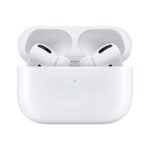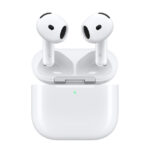
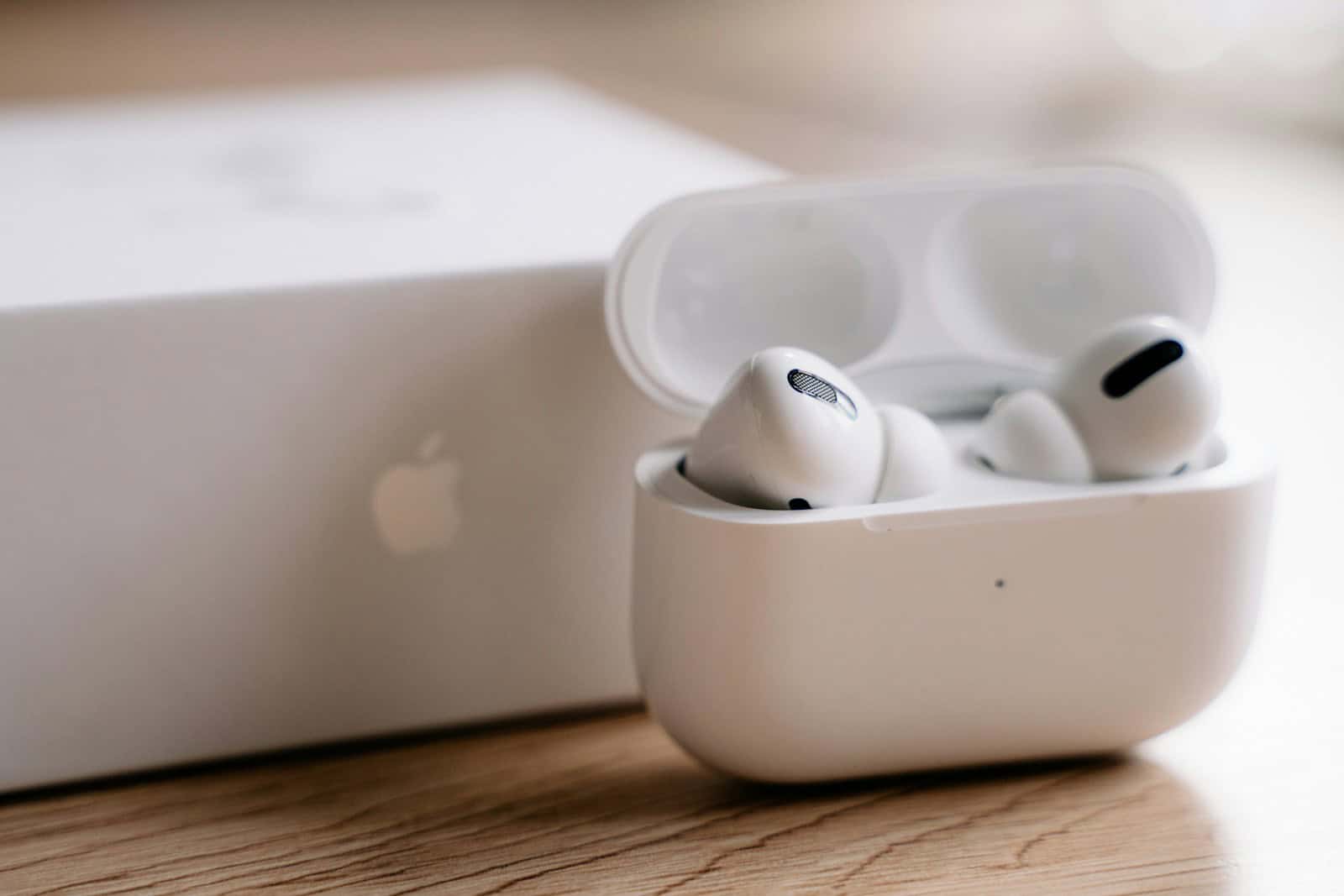
AirPods deliver amazing sound, but some users want deeper bass for a fuller audio experience. Apple’s wireless earbuds can actually produce impressive low frequencies with the right adjustments. You can increase bass on AirPods by adjusting equalizer settings, using silicone tips for better seal, or trying specialized audio apps designed to enhance low frequencies.
Getting more bass from AirPods doesn’t require expensive equipment or technical knowledge. Simple changes like enabling the bass booster feature through Apple Music can dramatically improve sound quality in just a minute. Better yet, using custom audio setup tailors the listening experience to personal preferences.
For Android users, the process is equally straightforward. By accessing the equalizer settings and adjusting the lower-frequency sliders, listeners can amplify bass to their desired level. Third-party apps like Equalizer Pro+ and Boom offer additional options for those wanting more control over their audio profile.
How to Increase Bass on Your AirPods
AirPods are known for clean sound, but their bass can feel light compared to over‑ear headphones. Fortunately, Apple provides several ways to boost bass using built‑in settings—no extra apps required. Follow the steps below to get deeper, punchier bass from your AirPods.
1. Use the iPhone EQ Settings (Best Quick Fix)
Apple’s EQ presets can significantly improve bass.
Steps:
- Open Settings
- Tap Music
- Select EQ
- Choose one of these options:
- Bass Booster (strong bass, may reduce clarity)
- Deep (balanced bass with clarity)
- Hip‑Hop (enhanced low‑end with punch)
✅ Recommended: Start with Deep for a natural bass boost.
2. Enable Headphone Accommodations (Very Effective)
This feature adjusts sound tuning and can noticeably enhance bass.
Steps:
- Open Settings
- Go to Accessibility
- Tap Audio/Visual
- Select Headphone Accommodations
- Turn it ON
- Tap Audio Tuning
- Choose Balanced Tone or Slightly Dark
- Set Strength to Moderate or Strong
🔊 Pro Tip: “Slightly Dark + Strong” produces deeper bass without distortion.
3. Turn On Spatial Audio (AirPods Pro & AirPods Max)
Spatial Audio can make bass feel fuller and more immersive.
Steps:
- Connect your AirPods
- Open Control Center
- Long‑press the Volume Slider
- Enable Spatial Audio
- Set it to Fixed or Head Tracked
🎧 Works best with Apple Music, Netflix, and Dolby Atmos content.
4. Adjust Sound Check (Apple Music Users)
Disabling Sound Check can restore lost bass impact.
Steps:
- Go to Settings
- Tap Music
- Toggle Sound Check OFF
This allows tracks to play at their intended dynamic range.
5. Get a Proper Fit (Critical for Bass)
Bass heavily depends on ear seal.
- AirPods Pro:
- Try different ear tip sizes
- Run the Ear Tip Fit Test in Bluetooth settings
- Regular AirPods:
- Adjust angle for a tighter seal
- Clean earbuds regularly to prevent sound blockage
✅ A better seal = deeper bass.
6. Use Bass‑Enhanced Apps (Optional)
Some apps provide custom EQ controls:
- Spotify: Built‑in EQ → increase low frequencies
- Boom, EQE, or similar audio apps (note: system‑wide EQ may be limited on iOS)
⚠️ Avoid extreme bass boosts to prevent distortion or ear fatigue.
7. Keep AirPods Firmware Updated
Firmware updates can improve sound tuning.
Check:
- Place AirPods in case
- Connect to iPhone
- Go to Settings → Bluetooth → AirPods → Version
Updates install automatically when charging and connected.
Final Tips for Best Bass
✅ Combine Headphone Accommodations + EQ
✅ Use high‑quality audio (Apple Music Lossless or high‑bitrate streaming)
✅ Avoid max volume—distortion kills bass clarity
Bottom Line
You don’t need new headphones to get better bass from your AirPods. With the right settings and a proper fit, you can dramatically improve low‑end performance in just a few minutes.
Key Takeaways
- Adjusting equalizer settings in music apps quickly enhances bass response in AirPods.
- Using silicone earbud tips creates a better seal that naturally improves low-frequency performance.
- Third-party equalizer apps provide additional customization options for the perfect bass level.
Optimizing AirPods for Enhanced Bass Performance
AirPods can deliver much better bass with the right settings and adjustments. These simple tweaks can transform your listening experience without needing to buy new headphones.
Understanding EQ Settings
The easiest way to increase bass on AirPods is through the built-in equalizer settings. Users can access this feature through their device settings:
- Go to Settings on your iPhone
- Tap Music > EQ
- Select Bass Booster from the list of options
For even better results, users can try the Late Night EQ preset which compresses the dynamic range and often makes bass more prominent.
Many users don’t realize that these EQ settings only affect the Apple Music app. For other apps like Spotify, adjustments need to be made within those specific applications.
Some devices also offer a Balance slider in Accessibility settings that can optimize regular audio while simultaneously amplifying the bass.
Selecting the Right Ear Tips
AirPods Pro users have a significant advantage when it comes to bass response because of their customizable ear tips.
Proper seal is essential for bass. When ear tips don’t create a complete seal, low frequencies leak out, resulting in thin-sounding audio.
Apple provides an Ear Tip Fit Test (found in Settings > Bluetooth > AirPods Pro) that helps determine if the current tips provide an optimal seal.
Tips come in three sizes:
- Small
- Medium
- Large
For those seeking even better bass response, third-party foam ear tips can provide a superior seal compared to the stock silicone options. Foam tips conform to the ear canal shape, creating a tighter seal and improving bass performance.
Users should try different sizes until they find the perfect fit. A proper seal also enhances Active Noise Cancellation, which further improves bass perception.
Adjusting Audio Settings in Music Apps
Different music apps offer unique tools for boosting bass. These settings can be used alongside device EQ settings for maximum impact.
Spotify users can access EQ settings by:
- Tapping the gear icon in the app
- Selecting “Playback”
- Finding “Equalizer” and adjusting the lower frequency sliders
Apple Music allows users to toggle between different EQ presets within the app itself, complementing system-wide settings.
For even more control, third-party equalizer apps provide advanced options:
- Equalizer Pro+: Works with iTunes and stored music
- Boom: Bass Booster & Equalizer: Compatible with TIDAL and iTunes
- Equalizer – Volume Booster EQ: Integrates with iTunes and Dropbox
Many of these apps feature advanced bass-enhancement algorithms that analyze audio signals and enhance specific frequencies to create a more powerful bass response.
Users should experiment with different streaming services since some naturally offer better bass reproduction than others due to their audio encoding methods.
Leveraging Technology and Techniques to Boost Bass
AirPods users have several options to enhance their bass experience through software adjustments, physical optimization, and built-in features. These approaches can significantly improve low-frequency sound reproduction without requiring new equipment.
Employing Third-Party Equalizer Apps
Third-party equalizer apps offer powerful tools to customize audio profiles beyond Apple’s built-in settings. Apps like Equalizer FX allow users to fine-tune specific bass frequencies with precision.
These apps typically provide:
- Preset profiles optimized for different music genres (hip-hop, electronic, rock)
- Custom adjustment sliders for specific frequency ranges
- Bass boost functions that specifically target low frequencies
Many equalizer apps also include visualization tools that help users see the frequency response in real-time. This visual feedback makes it easier to identify and enhance the exact bass frequencies that sound best.
For optimal results, users should experiment with small incremental adjustments rather than maxing out all bass frequencies, which can cause distortion or impact overall sound quality.
Enhancing Physical Factors
The physical aspects of AirPods use significantly impact bass performance. Proper fit and maintenance directly affect how well bass frequencies reach your ears.
Proper cleaning is essential for maintaining bass quality. When speaker meshes get clogged with debris:
- Use soft cotton swabs to gently remove buildup
- Clean ear tips on AirPods Pro monthly
- Avoid liquids that could damage internal components
Keeping AirPods clean can immediately improve sound quality without changing any settings.
Position also matters greatly. Adjusting how AirPods sit in your ears can create a better seal, which naturally enhances bass response. For AirPods Pro, try different ear tip sizes to find the optimal fit that forms a complete seal.
Third-party accessories like memory foam tips can improve isolation and bass response for AirPods Pro users by creating a more customized fit.
Exploring Advanced AirPods Features
Higher-end AirPods models include sophisticated features specifically designed to enhance bass reproduction and overall listening experience.
Active Noise Cancellation on AirPods Pro and Max significantly improves perceived bass by eliminating competing background noise. This feature allows users to hear low frequencies more clearly even at lower volumes.
To maximize ANC benefits:
- Run the Ear Tip Fit Test in settings
- Enable noise cancellation in loud environments
- Adjust transparency mode levels as needed
Spatial Audio technology creates a more immersive soundstage that can enhance bass perception. When combined with dynamic head tracking, this feature places sounds in virtual space, making bass feel more dimensional and present.
The Headphone Accommodations feature also offers audio profile customization. Users can access this through Settings > Accessibility > Audio/Visual to create a more balanced sound profile that highlights bass frequencies according to personal hearing preferences.