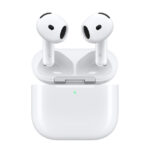
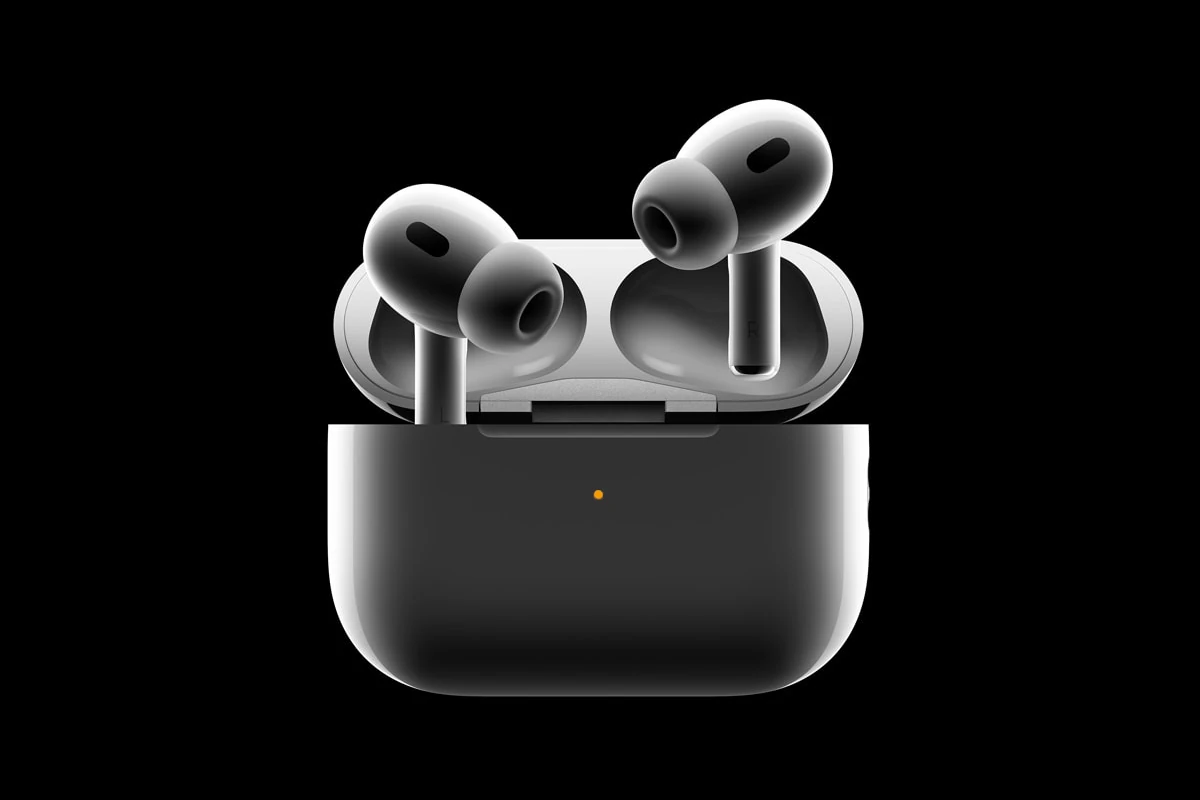
Apple’s latest iOS 18 update brings exciting changes to how AirPods users can interact with Siri. The new feature aptly named “Siri Interactions” allows users to communicate with their digital assistant in more natural ways. With Siri Interactions on AirPods Pro 2 and AirPods 4, users can now respond to calls, messages, and notifications by simply nodding their head up or down instead of speaking aloud.
This hands-free, voice-free interaction method transforms how people use their AirPods in public spaces. No longer do users need to verbally respond to Siri while in meetings or crowded areas. The system works alongside improved Voice Isolation technology, which enhances call clarity by filtering out background noise when users do choose to speak.
Apple has designed these interactions to work seamlessly across iPhone, iPad, and Mac devices when paired with compatible AirPods models. The technology leverages the advanced H2 chip in newer AirPods, enabling them to detect subtle head movements and translate them into commands without requiring constant verbal confirmation.
AirPods Siri Interactions on iOS: A Complete Guide
Apple’s AirPods are deeply integrated with Siri, allowing you to control your iPhone or iPad hands‑free. This guide explains how to activate Siri with AirPods, what you can do with Siri, and how to customize your settings on iOS.
1. Supported AirPods Models
Siri interactions are available on:
- AirPods (2nd generation and later)
- AirPods Pro (all generations)
- AirPods Max
- Some Beats headphones with Apple’s H1 or H2 chip
Note: First‑generation AirPods require manual activation (double‑tap).
2. How to Activate Siri with AirPods
A. “Hey Siri” or “Siri”
Available on AirPods that support hands‑free Siri.
How to use:
- Wear your AirPods.
- Say “Hey Siri” or “Siri”.
- Speak your request.
✅ Works even when your iPhone is locked.
B. Press and Hold (AirPods Max)
- Press and hold the Digital Crown.
- Speak your command.
C. Touch or Force Sensor (Older Models)
On AirPods (2nd generation):
- Double‑tap an AirPod.
- Siri activates.
You can customize which AirPod triggers Siri (see Section 4).
3. What You Can Do with Siri Using AirPods
A. Media Control
- “Play my workout playlist.”
- “Skip this song.”
- “Turn the volume up.”
- “What song is this?”
B. Calls and Messages
- “Call Mom.”
- “Answer the call.”
- “Read my messages.”
- “Reply: I’ll be there in 10 minutes.”
Siri can announce incoming calls and messages automatically.
C. Navigation and Travel
- “Give me directions to home.”
- “How long will it take to get to work?”
- “Find nearby coffee shops.”
D. Smart Home Control
- “Turn off the living room lights.”
- “Set the thermostat to 72 degrees.”
- “Lock the front door.”
(Requires HomeKit‑compatible devices.)
E. Information and Productivity
- “What’s the weather today?”
- “Set a 20‑minute timer.”
- “Remind me to email John tonight.”
- “What’s on my calendar?”
4. Customizing Siri Settings for AirPods
A. Change AirPods Controls
- Go to Settings > Bluetooth.
- Tap the ⓘ next to your AirPods.
- Select Left or Right AirPod.
- Choose Siri or another action.
B. Enable or Disable “Hey Siri”
- Go to Settings > Siri & Search.
- Turn Listen for “Hey Siri” on or off.
- Follow setup instructions if prompted.
C. Announce Calls and Messages
- Go to Settings > Siri & Search > Announce Notifications.
- Enable Announce Notifications.
- Choose supported apps (Messages, Phone, etc.).
5. Tips for Better Siri Performance
- Speak clearly and naturally.
- Reduce background noise when possible.
- Keep your AirPods firmware and iOS updated.
- Make sure Siri language matches your system language.
6. Troubleshooting Siri with AirPods
Siri doesn’t respond:
- Ensure Bluetooth is enabled.
- Check that Siri is turned on in Settings > Siri & Search.
- Reconnect or reset your AirPods.
“Hey Siri” not working:
- Re‑train Siri voice recognition.
- Make sure your AirPods support hands‑free Siri.
7. Privacy and Security
- Siri requests may be processed on-device or on Apple servers.
- You can manage Siri data in Settings > Siri & Search > Siri & Dictation History.
- Siri respects iOS lock screen privacy settings.
Summary
Siri and AirPods together provide fast, hands‑free control of your iPhone or iPad. With simple voice commands, you can manage music, calls, messages, navigation, and smart home devices—making AirPods a powerful everyday tool.
Key Takeaways
- Head gestures allow for silent responses to calls and messages without speaking aloud in public spaces.
- Siri Interactions work with AirPods Pro 2 and AirPods 4 when paired with iOS 18 devices.
- Enhanced voice quality and isolation features make communication clearer even in noisy environments.
Siri Interaction Enhancements in iOS 18
iOS 18 brings major improvements to how AirPods users interact with Siri. These updates focus on hands-free controls, improved voice recognition, and new gesture capabilities that make daily use more intuitive.
Customizing Siri Commands for AirPods
AirPods Pro 2 and the new AirPods 4 now support Siri Interactions that go beyond basic voice commands. Users can control their devices without speaking out loud, which is perfect for public places.
The most notable addition is the ability to respond to notifications with simple head movements. Users can:
- Nod to accept calls or confirm actions
- Shake their head to decline or dismiss notifications
- Interact with messages without removing their phone from their pocket
This feature works with various notifications, including messages, calls, and app alerts. The system runs on the H2 chip found in newer AirPods models.
Users can customize which notifications trigger head gesture options through the AirPods settings menu. This personalization helps prevent unnecessary interruptions during focused work or exercise.
Advanced Voice Isolation and Recognizing Gestures
AirPods Pro now include Voice Isolation technology that significantly improves call quality. This feature filters out background noise to ensure clear conversations even in noisy environments.
The gesture recognition system uses:
- Machine learning algorithms running on the H2 chip
- Dynamic Head Tracking to precisely detect intentional movements
- Adaptive sensitivity that distinguishes between deliberate gestures and normal head movements
Voice commands work alongside gestures, creating a hybrid interaction system. For example, users can activate Siri with a voice command, then respond to its questions with head movements.
The system reduces “false positive” detections by requiring specific movement patterns. This prevents accidental activations when walking or exercising.
AirPods Features and Firmware Updates
To access the latest Siri Interactions, users must have compatible hardware and the latest firmware updates. The minimum requirements include:
- AirPods Pro 2 or AirPods 4
- iOS 18, iPadOS 18, or macOS Sequoia
- Latest AirPods firmware version
The update also introduces Adaptive Audio capabilities that automatically adjust sound settings based on the environment. This works with Siri to create a more responsive listening experience.
Firmware updates typically install automatically when AirPods are connected to a charging case near the paired iPhone. Users can check their current firmware version in the AirPods settings menu.
Developers can access new APIs to integrate these features into third-party apps. This allows for custom Siri interactions with app-specific functions through head gestures.
AirPods Audio Advancements and Personalization
iOS 18 brings significant audio enhancements to AirPods, focusing on personalized listening experiences and improved performance. These updates transform how users interact with their devices while addressing accessibility needs.
Personalized Spatial Audio and Immersive Experiences
The latest iOS 18 update delivers major improvements to Spatial Audio technology for AirPods Pro 2 and AirPods 4 users. Personalized Spatial Audio now adapts to individual ear shapes, creating a truly custom 3D audio environment that enhances immersion.
Gaming experiences benefit tremendously from these updates. iOS 18 significantly reduces audio latency when using AirPods during gameplay. This improvement eliminates the frustrating delay between on-screen action and audio feedback.
The new Game Mode feature specifically targets wireless audio latency issues that previously plagued mobile gaming. Users will notice:
- Improved audio-visual synchronization
- Enhanced directional sound for competitive gaming
- Better overall immersion in gaming environments
- Support for 48kHz audio sampling for higher quality sound
Hearing Health Innovations and Accessibility
AirPods now function as proactive hearing health devices with iOS 18. The update introduces a built-in Hearing Test feature that users can complete directly through their AirPods.
This test creates a personalized hearing profile that automatically adjusts audio output based on individual hearing capabilities. The system uses machine learning to continuously refine these adjustments over time.
For those with hearing impairments, AirPods Pro can now function as basic hearing aids. They amplify conversations and reduce background noise in challenging environments. This feature includes:
| Hearing Feature | Benefit |
|---|---|
| Conversation Boost | Enhances voices in noisy settings |
| Background Noise Reduction | Minimizes distracting sounds |
| Hearing Protection | Warns of dangerous sound levels |
| Custom EQ Settings | Tailored to personal hearing profiles |
Integration with Apple Ecosystem and Developer Opportunities
AirPods in iOS 18 feature deeper integration with the entire Apple ecosystem. The update improves how AirPods work with Messages, allowing for seamless notification management and responses using head gestures.
Developers gain new tools to enhance AirPods functionality through App Actions. This framework lets third-party apps leverage AirPods features like Siri Interactions and head gesture controls within their own applications.
The AirPods charging case receives smart updates in iOS 18, displaying battery status and connection information directly on iPhone and iPad lock screens. iPadOS 18 maintains feature parity, ensuring consistent experiences across devices.
Future updates in iOS 18.4 are expected to bring additional audio features, with rumors pointing toward:
- Advanced noise cancellation algorithms
- More precise head tracking for Spatial Audio
- Expanded developer APIs for audio customization
- Battery optimization for extended listening sessions