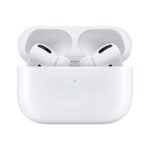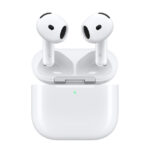
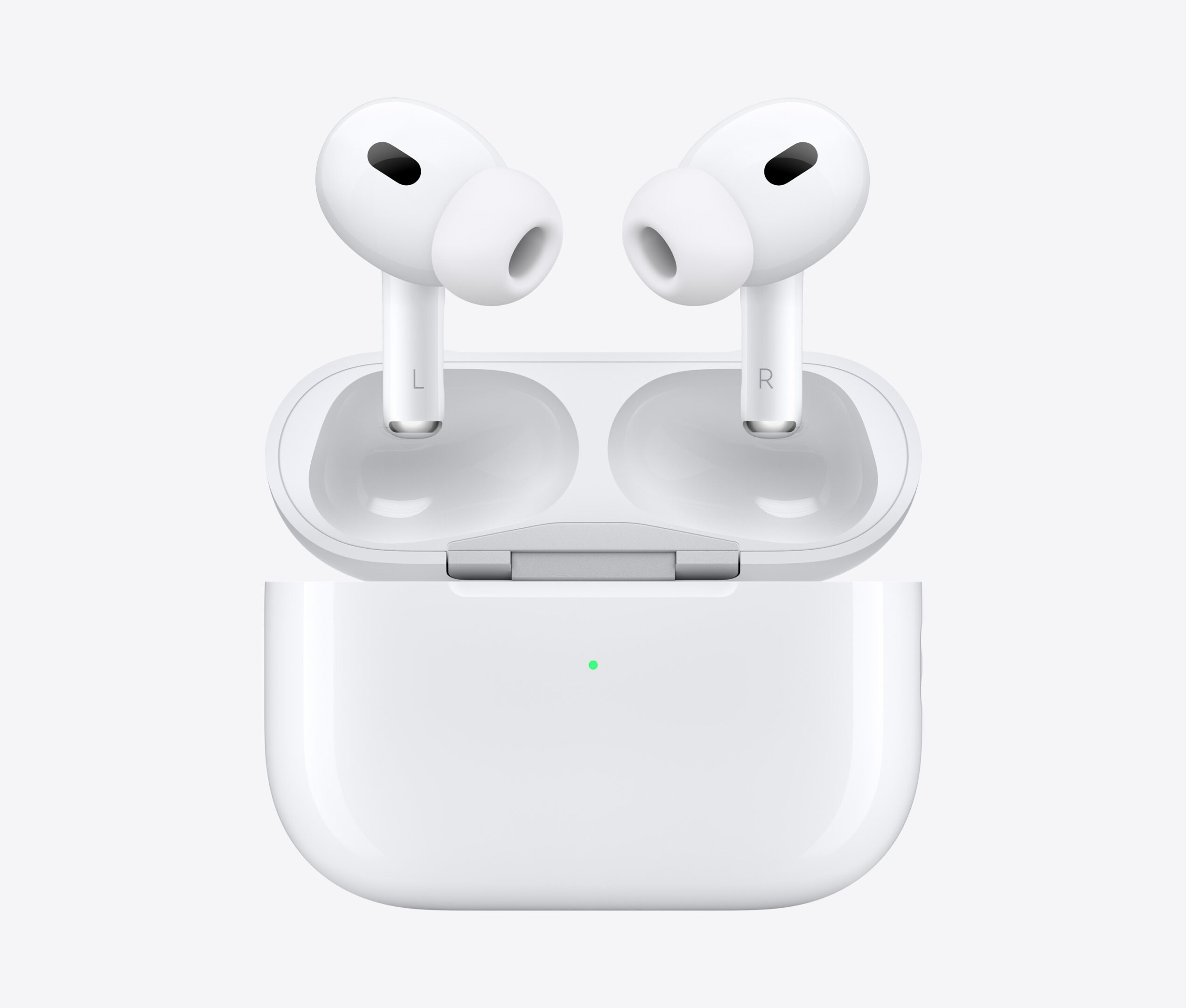
Many AirPods Pro 2 users have reported problems with the hearing test feature not working properly. This frustrating issue often shows up as error messages like “Unable to complete hearing test” or prompts telling users to place their AirPods back in the case even when they’re already properly seated in the ears. The most common fixes include updating the AirPods firmware to the latest version, ensuring the AirPods are properly fitted in your ears, and restarting both the AirPods and your iPhone.
The hearing test feature, introduced with iOS 18, allows AirPods Pro 2 to function as hearing aids and help users monitor their hearing health. When working correctly, the feature walks users through a simple questionnaire and sound test to create a personalized hearing profile. But technical glitches can interrupt this process, leaving users unable to access these beneficial health features.
Apple has acknowledged some of these issues in recent updates. Many users find that completing the initial setup process requires multiple attempts. Sometimes waiting a few minutes between attempts can help the system recognize the AirPods properly and allow the hearing test to proceed without error messages.
What To Do If the AirPods Pro 2 Hearing Test Is Not Working
Apple’s AirPods Pro (2nd generation) include a built‑in Hearing Test and Hearing Health features designed to help users understand their hearing and personalize audio. If the hearing test isn’t showing up, won’t start, or fails midway, you’re not alone. Below is a step‑by‑step troubleshooting guide to help you get it working.
1. Check Device Compatibility First
The Hearing Test only works if all requirements are met.
✅ You need:
- AirPods Pro (2nd generation) (USB‑C or Lightning case)
- iPhone running the latest iOS version (iOS 17 or later recommended)
- Apple Health app enabled
- AirPods connected to your Apple ID
❌ It will not work with:
- AirPods Pro (1st generation)
- AirPods (non‑Pro models)
- iPad, Mac, or Android devices
Fix:
Go to Settings → Bluetooth → AirPods Pro and confirm they’re listed as AirPods Pro (2nd generation).
2. Make Sure Hearing Health Is Available in Your Region
Apple’s Hearing Test feature is region‑restricted due to medical regulations.
How to check:
- Open the Health app
- Tap Browse → Hearing
- Look for Hearing Test or Hearing Health
If you don’t see it, the feature may not be supported in your country yet.
Fix:
Make sure:
- Your Apple ID region is correct
- Your iPhone region matches (Settings → General → Language & Region)
3. Update iOS and AirPods Firmware
Outdated software is one of the most common causes.
Update iOS:
- Go to Settings → General → Software Update
Update AirPods firmware:
AirPods update automatically when:
- Connected to your iPhone
- Inside the case
- Case is charging
- iPhone is nearby and connected to Wi‑Fi
Fix:
Leave your AirPods charging near your iPhone for 20–30 minutes, then reconnect them.
4. Make Sure AirPods Are Worn Correctly
The hearing test relies on accurate ear seal and fit.
Check:
- AirPods are fully inserted
- Correct ear tips are installed
- You’ve passed the Ear Tip Fit Test
Fix:
Go to Settings → Bluetooth → AirPods Pro → Ear Tip Fit Test and redo it before starting the hearing test.
5. Disable Background Noise and Audio Features
The test needs a quiet environment and minimal interference.
Before starting:
- Go to a quiet room
- Turn off fans, TVs, or music
- Disable Noise Control toggles (Transparency/Adaptive)
Fix:
Set AirPods to Noise Cancellation and ensure no other audio is playing.
6. Restart and Reconnect Everything
If the test is stuck loading or won’t start, a reset often fixes it.
Restart iPhone:
- Power off → wait 30 seconds → power on
Reset AirPods Pro 2:
- Put AirPods in the case
- Open the lid
- Hold the case button for 15 seconds until the light flashes amber
- Reconnect AirPods to your iPhone
7. Check Health App Permissions
If the hearing test opens but doesn’t save or complete, permissions may be blocked.
Fix:
- Go to Settings → Privacy & Security → Health
- Tap Hearing
- Enable all permissions
- Open the Health app and try again
8. Remove and Re‑Add AirPods to Apple ID
Sometimes iCloud syncing causes issues.
Fix:
- Go to Settings → Bluetooth
- Tap the ⓘ next to AirPods Pro
- Tap Forget This Device
- Restart iPhone
- Reconnect AirPods and sign in again
9. Try a Different iPhone (If Possible)
If the hearing test works on another compatible iPhone, the issue is likely software‑related on your main device.
This helps confirm whether the problem is:
- iOS‑specific
- Account‑related
- AirPods hardware‑related
10. Contact Apple Support If Nothing Works
If you’ve tried everything and the hearing test still won’t work, it may be:
- A firmware bug
- A defective earbud
- A region rollout issue
Next step:
Contact Apple Support via the Apple Support app or website and mention:
- AirPods Pro (2nd generation)
- Hearing Test / Hearing Health feature
- iOS version and region
Quick Checklist
✅ AirPods Pro (2nd gen)
✅ Latest iOS & firmware
✅ Correct region supported
✅ Quiet environment
✅ Proper ear tip fit
✅ Health permissions enabled
Final Thoughts
The AirPods Pro 2 Hearing Test is a powerful feature, but it’s sensitive to software versions, region settings, and fit accuracy. In most cases, updating iOS, checking region availability, and resetting the AirPods resolves the issue.
Key Takeaways
- Update AirPods Pro 2 firmware and iOS to the latest versions to resolve most hearing test failures.
- Try different ear tip sizes and ensure proper fit before starting the hearing test questionnaire.
- Restart both your AirPods and iPhone if you encounter persistent “Unable to complete” error messages.
Troubleshooting AirPods Pro 2 Hearing Test Issues
Many users face challenges when trying to use the Hearing Test feature on their AirPods Pro 2. These problems often stem from setup issues, software bugs, or outdated firmware that can be fixed with proper troubleshooting steps.
Verifying Compatibility and Settings
The Hearing Test feature requires specific hardware and software combinations to work properly. Users need AirPods Pro 2 and a compatible iPhone running iOS 18 or later. The feature won’t work with earlier AirPods models or older iOS versions.
To check compatibility:
- Confirm you have AirPods Pro 2 (not the original AirPods Pro)
- Verify your iPhone is running iOS 18 or later
- Ensure your iPad is updated if using that device instead
The testing environment also matters. The test needs a quiet room with minimal background noise. Excessive noise can trigger the “Unable to Classify” error that many users report in the Apple Community forums.
Make sure your AirPods fit properly in your ears. The test checks ear tip fit, and poor fit can cause failures. Try different ear tip sizes from the four options included with AirPods Pro 2.
Common Hearing Test Errors and Fixes
The most frequent error messages have specific solutions:
“Place AirPods Pro in Case”: This common error occurs even when AirPods are properly seated in ears. Users in Apple discussions report that this error persists despite following instructions.
To fix this issue:
- Put AirPods back in the case
- Close the lid for 10 seconds
- Take them out and try again
- Reset your AirPods if the problem continues
“Unable to Classify”: This error typically appears when the test can’t accurately measure hearing responses. The test might be affected by buggy software or firmware issues.
Try these solutions:
- Move to a quieter location
- Check ear tip fit using the Ear Tip Fit Test
- Try different size ear tips for better sealing
- Restart your iPhone before attempting again
Updating Firmware to Resolve Problems
Firmware issues cause many hearing test failures. Apple regularly releases updates to fix bugs in the AirPods Pro 2 firmware.
To check your current firmware version:
- Connect your AirPods to your iPhone
- Go to Settings > Bluetooth
- Tap the “i” icon next to your AirPods
- Look for the firmware version (7B19 or newer is recommended)
Unlike iOS updates, AirPods firmware updates happen automatically and can’t be manually triggered. To encourage updates:
- Keep AirPods in their charging case
- Connect the case to power
- Keep the paired iPhone nearby with WiFi on
For persistent issues, the latest iOS 18.1 update addresses several AirPods Pro 2 bugs. Apple Support recommends updating both your iPhone and ensuring your AirPods receive their latest firmware to resolve hearing test problems.
Advanced Features and Their Impact on AirPods Pro 2 Performance
The AirPods Pro 2 include sophisticated features that may affect the hearing test functionality. These features work together to create a personalized listening experience but can sometimes interfere with diagnostic capabilities.
Noise Cancellation and Hearing Aid Compatibility
The AirPods Pro 2 offer powerful active noise cancellation that can block unwanted background sounds. This feature is crucial for the hearing test accuracy as it creates a controlled sound environment.
When the noise cancellation doesn’t work properly, hearing test results may be skewed. Users might hear ambient noise that interferes with the tones played during the audiogram assessment.
The devices also include a hearing aid functionality that works with the test results. If noise cancellation fails, this feature may not receive accurate data to properly assist those with hearing loss.
For optimal performance, users should:
- Ensure the earbuds fit properly
- Update to the latest firmware
- Perform the test in a quiet environment
- Restart the AirPods if noise cancellation seems ineffective
Headphone Accommodations for Individual Hearing Differences
The Headphone Accommodations feature tailors audio output to individual hearing profiles. This system uses the hearing test results to create a personalized EQ setting.
If the hearing test isn’t working, the personalization process can’t be completed. The test normally takes about 3-4 minutes and measures hearing across different frequencies to create an audiogram.
Users with various degrees of hearing loss experience different results. Those with mild to moderate hearing loss may benefit most from these accommodations. The AirPods Pro 2 have limitations for severe hearing loss cases.
The 2022 AirPods Pro 2 received these hearing health features through a software update, without hardware changes. This shows Apple’s commitment to extending functionality through software improvements.