Dealing with AirPods that suddenly stop connecting to your iPhone can be frustrating, especially after updating to iOS 18. Many users have reported this issue following recent iOS updates, with symptoms ranging from complete failure to connect to intermittent disconnections. The quickest fix for AirPods not connecting to iOS devices is often to restart both devices, reset the Bluetooth connection, or forget and reconnect the AirPods to your iPhone.
When AirPods won’t connect even when they appear in your Bluetooth devices list, it can point to deeper software conflicts between the earbuds and iOS 18. Users have noted that after updating to iOS 18, they can only connect their AirPods if they forget and reconnect them each time. Sometimes the AirPods will show battery status when the case is opened but fail to connect when placed in ears.
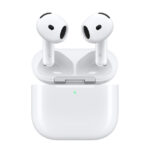
For AirPods 4 owners experiencing connectivity issues, Apple recommends a specific troubleshooting step: double-tap the front of the case until the status light flashes white. This simple action can reset the connection process and solve many common problems. Other solutions include ensuring iPhone’s Bluetooth is turned on and checking for potential interference from other devices.
How to Fix AirPods Not Connecting to iOS
If your AirPods won’t connect to your iPhone or iPad, the issue is usually caused by Bluetooth settings, outdated software, or a pairing glitch. Follow the steps below in order to quickly identify and fix the problem.
1. Check Basic Requirements
Before troubleshooting, confirm the basics:
- AirPods are charged – Place them in the charging case and make sure the case has power.
- iPhone/iPad is nearby – Keep the AirPods within a few inches of the device.
- Bluetooth is enabled – Go to Settings → Bluetooth and ensure it’s turned on.
2. Toggle Bluetooth Off and On
A simple Bluetooth reset often fixes connection issues.
- Open Settings → Bluetooth
- Turn Bluetooth OFF
- Wait 10 seconds
- Turn Bluetooth ON again
Then open the AirPods case and see if they connect.
3. Restart Your iPhone or iPad
Restarting clears temporary system glitches that may block Bluetooth connections.
- Press and hold the Power button
- Slide to power off
- Wait 30 seconds
- Turn the device back on
4. Reconnect AirPods Manually
- Open the AirPods case lid
- Go to Settings → Bluetooth
- Tap your AirPods name if it appears
- Select Connect
If they don’t appear, move to the next step.
5. Forget and Re‑Pair Your AirPods
This fixes most persistent connection issues.
- Go to Settings → Bluetooth
- Tap the (i) next to your AirPods
- Tap Forget This Device
- Confirm the action
Re‑pair:
- Put AirPods in the case and close the lid for 30 seconds
- Open the lid
- Press and hold the setup button on the back of the case until the light flashes white
- Bring them near your iPhone and follow the on‑screen instructions
6. Update iOS
Outdated software can cause compatibility issues.
- Go to Settings → General → Software Update
- Install any available updates
- Restart your device after updating
7. Check AirPods Battery Status
Low battery can prevent pairing.
- Open the AirPods case near your iPhone
- Check the battery pop‑up
- Recharge if battery is low
8. Reset Network Settings (Advanced Fix)
This removes Bluetooth and Wi‑Fi configurations (Wi‑Fi passwords will be erased).
- Go to Settings → General → Transfer or Reset iPhone
- Tap Reset
- Select Reset Network Settings
- Re‑pair your AirPods afterward
9. Check for Interference
Bluetooth interference can disrupt connections.
- Turn off nearby Bluetooth devices temporarily
- Move away from Wi‑Fi routers or crowded wireless areas
- Avoid using AirPods near microwaves or metal surfaces
10. Test AirPods on Another Device
If AirPods won’t connect to any device, the issue may be hardware-related.
- Try connecting them to another iPhone or iPad
- If they still won’t connect, contact Apple Support
When to Contact Apple Support
You should reach out to Apple if:
- AirPods won’t enter pairing mode
- The case light doesn’t turn on
- AirPods disconnect repeatedly after all fixes
Final Tip
Most AirPods connection issues are solved by forgetting the device and re‑pairing. If that doesn’t work, an iOS update or network reset usually does.
Key Takeaways
- Restart both your iPhone and AirPods as the first troubleshooting step for connectivity issues after iOS updates.
- Forgetting your AirPods in Bluetooth settings and reconnecting them can resolve persistent connection problems.
- Check that your iPhone’s Bluetooth is enabled and reset the connection by double-tapping the AirPods case until you see a white flashing light.
Troubleshooting AirPods Connection Issues
Connection problems with AirPods are common, especially after iOS updates. Many users face frustrating moments when their AirPods simply won’t connect to their devices.
Checking Bluetooth and iOS Settings
When AirPods won’t connect, the first place to check is your device’s Bluetooth settings. Open Control Center by swiping down from the top-right corner of your iPhone screen and make sure Bluetooth is turned on.
If Bluetooth is on but AirPods still won’t connect, try toggling Airplane mode on and off. This can reset wireless connections and solve minor glitches.
Many connection issues after iOS 18 updates can be fixed by disabling Automatic Switching between devices. To do this:
- Go to Settings
- Tap Bluetooth
- Tap the (i) icon next to your AirPods
- Turn off “Connect to This iPhone/iPad” or change it from “Automatically” to “When Last Connected”
For iPhone 15 users, check if your iOS is fully updated, as some early versions had Bluetooth compatibility issues with AirPods.
Restarting and Resetting Your Devices
A simple restart can fix many connection problems. Turn your iPhone off and on again before trying to reconnect your AirPods.
If that doesn’t work, you may need to reset your AirPods. Here’s how:
- Put your AirPods in their charging case and close the lid
- Wait 15 seconds
- Open the lid
- Press and hold the setup button on the back of the case until the status light flashes white
This reset process works for AirPods Pro and AirPods Max as well, though the button location varies slightly.
For persistent issues, try resetting your network settings by going to Settings > General > Transfer or Reset iPhone > Reset > Reset Network Settings. Note that this will remove all saved Wi-Fi networks.
Understanding AirPods Status Lights
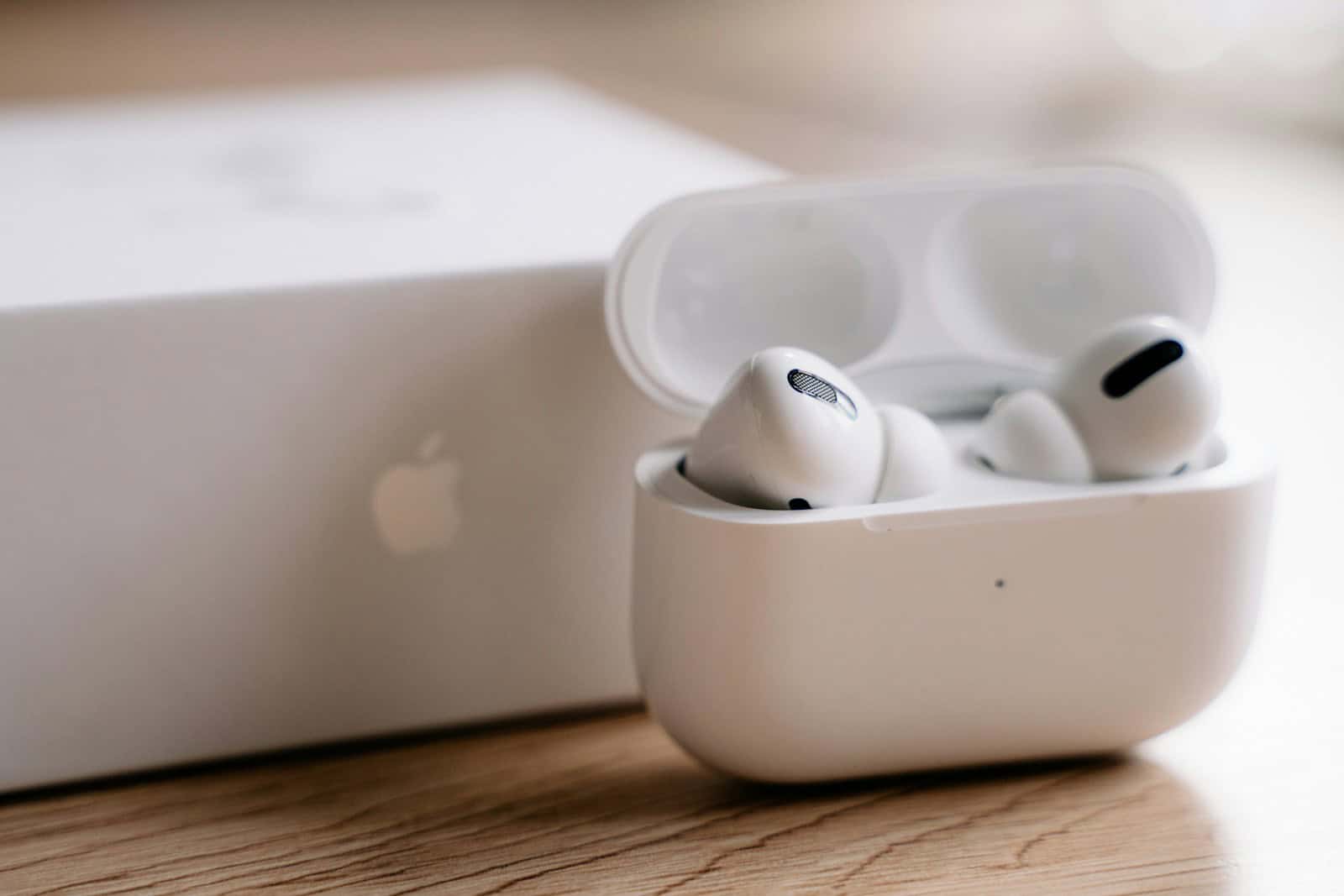
The small LED on your AirPods case provides helpful information about connection status and battery levels.
When your AirPods are in the case, here’s what the lights mean:
- Green light: AirPods are fully charged
- Amber light: AirPods are charging but not full
- Flashing white light: AirPods are in pairing mode
- No light: Battery may be completely drained
For AirPods 4, you can double-tap the front of the case until the status light flashes white to initiate pairing mode.
If the status light is flashing amber, this could indicate a hardware issue. Try cleaning the charging contacts on both the AirPods and inside the case with a soft, dry cloth.
Advanced Solutions and Support
When basic troubleshooting doesn’t fix AirPods connection issues with iOS 18, more technical approaches may help. These methods address deeper software problems, physical maintenance needs, and when to get expert assistance.
Performing Software Updates
Keeping both AirPods firmware and iOS updated is crucial for proper connectivity. Many connection issues after iOS 18 are solved with the latest updates.
To check your iPhone’s software:
- Go to Settings > General > Software Update
- Download and install any available updates
- Restart your iPhone after updating
For AirPods firmware updates:
- Place AirPods in their case
- Connect the case to power
- Keep your iPhone nearby with Bluetooth on
The firmware updates automatically when needed. Your iPhone 15 needs the latest iOS 18 version to work best with newer AirPods models.
Updates often fix bugs that cause AirPods to disconnect randomly or fail to connect at all. After major iOS releases, Apple usually releases follow-up updates that address connection problems.
Maintaining and Cleaning AirPods
Dirt and debris can block sensors and cause connection problems. Regular cleaning helps maintain reliable connections.
Cleaning supplies needed:
- Lint-free cloth
- Cotton swabs
- Isopropyl alcohol (70%)
- Soft brush
Cleaning steps:
- Wipe the outer surface with a slightly damp lint-free cloth
- Use dry cotton swabs to clean speaker meshes and microphone holes
- For stubborn dirt, lightly dampen a cotton swab with alcohol
- Clean charging contacts in the case with a dry cotton swab
Never use sharp objects or excessive moisture when cleaning AirPods. Pay special attention to the proximity sensors that detect when AirPods are in your ears.
Clean charging ports both on the case and your iPhone 15 to ensure proper charging and connectivity between devices.
Contacting Apple Support
When all else fails, professional help from Apple may be necessary. Connection issues that persist despite troubleshooting might indicate hardware problems.
Ways to contact Apple support:
- Apple Support website
- Apple Support app on iPhone
- Visit an Apple Store
- Call Apple Support phone line
Before contacting support, gather important information:
- AirPods model and serial number
- iPhone model and iOS version
- Steps already tried
- When the problem started
Apple may recommend a hardware diagnostic test or replacement if your AirPods are under warranty. Most AirPods have a one-year warranty that covers manufacturing defects.
For persistent iOS 18 connection issues with AirPods, Apple support can check if there’s a known issue affecting multiple users. They might have specific solutions not available to the public.