
Laptop hard drive issues can cause slow performance, crashes, data loss, or prevent your computer from booting altogether. Whether your laptop uses a traditional hard disk drive (HDD) or a solid‑state drive (SSD), this guide will walk you through common symptoms, causes, and step‑by‑step solutions to fix hard drive problems safely.
Common Signs of Hard Drive Problems
You may be dealing with a hard drive issue if you notice:
- Slow boot times or freezing
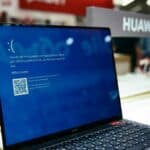
- Frequent crashes or blue/black screens
- Files disappearing or becoming corrupted
- Clicking or grinding noises (HDD only)
- “Operating System Not Found” errors
- Laptop not detecting the drive
- Sudden storage space loss
Step 1: Back Up Your Data Immediately
Before attempting any fixes:
✅ Back up important files to:
- An external hard drive
- Cloud storage (Google Drive, iCloud, OneDrive)
- Another computer
⚠️ If the drive is failing, continuing to use it may cause permanent data loss.
Step 2: Restart and Check External Causes
Sometimes the issue isn’t the drive itself.
Try This First
- Restart your laptop
- Disconnect external drives and USB devices
- Check if the issue persists in Safe Mode
Step 3: Check if the Hard Drive Is Detected
On Windows
- Press Windows + X
- Select Disk Management
- Look for your drive
On macOS
- Open Disk Utility
- Check if the drive appears in the sidebar
If the drive does not appear:
➡️ Possible hardware failure or loose connection.
Step 4: Run Built‑In Disk Repair Tools
Windows: Run CHKDSK
- Open Command Prompt as administrator
- Type:
chkdsk C: /f /r - Press Enter and restart
✅ Fixes file system errors and bad sectors.
macOS: Run First Aid
- Open Disk Utility
- Select the drive
- Click First Aid
- Run repair
✅ Fixes directory and permission issues.
Step 5: Check Drive Health (SMART Status)
Windows
- Use tools like CrystalDiskInfo
- Check for warnings such as “Caution” or “Bad”
macOS
- Disk Utility shows SMART status
- “Failing” indicates imminent failure
⚠️ SMART warnings usually mean the drive must be replaced.
Step 6: Update or Repair the Operating System
Corrupted system files can mimic drive failure.
Windows
- Run:
sfc /scannow - Use Startup Repair
- Install pending updates
macOS
- Reinstall macOS without erasing data
- Run software updates
Step 7: Check for Malware or Viruses
Malware can:
- Corrupt files
- Hide storage
- Cause read/write errors
✅ Run a full antivirus scan using:
- Windows Security
- Malwarebytes
- Trusted third‑party antivirus software
Step 8: Free Up Disk Space
Low disk space can cause crashes and slowdowns.
What to Do
- Delete unused files
- Uninstall unused programs
- Clear temporary files
- Move large files to external storage
Step 9: Fix Boot Errors
Windows Boot Fix
- Boot from Windows installation media
- Choose Repair your computer
- Select Startup Repair
macOS Boot Fix
- Restart and hold Command + R
- Open Disk Utility
- Repair startup disk
Step 10: Listen for Physical Damage (HDD Only)
If you hear:
- Clicking
- Grinding
- Beeping
✅ Stop using the laptop immediately.
These sounds indicate mechanical failure and require drive replacement.
Step 11: Reseat or Replace the Hard Drive
If comfortable with hardware:
- Power off laptop
- Remove battery (if possible)
- Open back panel
- Reseat the drive
- Test again
If the drive still fails: ➡️ Replace it with a new SSD (recommended).
Step 12: Upgrade to an SSD (Best Long‑Term Fix)
Replacing an HDD with an SSD provides:
- Faster boot times
- Better reliability
- No moving parts
- Improved battery life
✅ Most laptops support SSD upgrades.
When to Replace the Hard Drive
Replace the drive if:
- SMART status is failing
- Frequent bad sectors appear
- Data corruption persists
- Laptop fails to boot consistently
Professional Data Recovery (Last Resort)
If data is critical and the drive fails completely:
- Stop using the drive
- Contact a professional recovery service
- Avoid DIY software for physically damaged drives
Summary: Hard Drive Fix Checklist
✅ Back up data
✅ Run disk repair tools
✅ Check SMART health
✅ Scan for malware
✅ Repair OS files
✅ Replace failing drives
Final Thoughts
Laptop hard drive issues range from simple software errors to serious hardware failures. Acting quickly can prevent data loss and save money. If your drive shows signs of physical damage or SMART failure, replacement is the safest solution.
Upgrading to an SSD is often the best fix—faster, quieter, and far more reliable.