
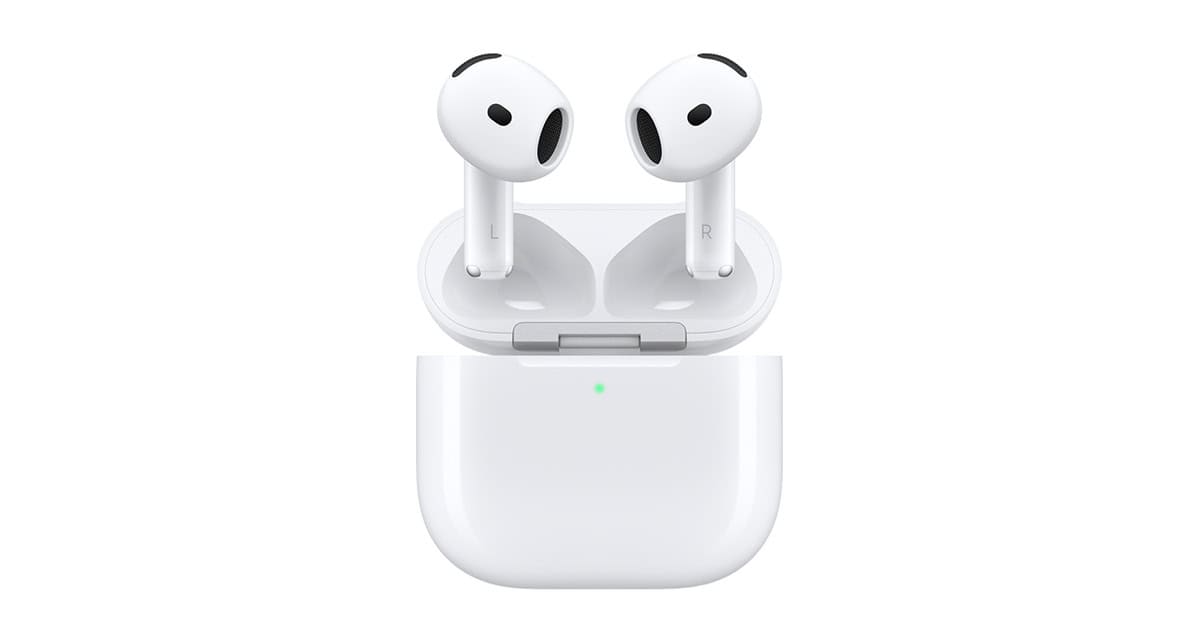
Are your AirPods not lasting as long as they used to? Many users find their AirPods battery draining quickly, leaving them without music or calls when they need them most. AirPods batteries drain faster due to high volume levels, frequent charging cycles, exposure to extreme temperatures, and normal battery degradation over time. While Apple designed these tiny earbuds with convenience in mind, their small batteries face significant strain with daily use.
Several factors contribute to rapid battery drain. Playing audio at high volumes forces the battery to work harder. The charging case itself might be losing power quickly if it’s constantly recharging nearly-empty AirPods. Most AirPods undergo 1-2 charging cycles daily, which adds up quickly. After about 1.5-2 years of regular use, many users notice significant battery degradation.
Fortunately, there are ways to extend battery life. Lowering the volume not only preserves battery power but also protects hearing. For AirPods Pro and 3rd generation models, enabling the Optimized Battery Charging feature helps manage charging patterns. Simple habits like storing AirPods at room temperature and cleaning the charging contacts can also make a noticeable difference.
AirPods Dying Fast? Solutions to Extend Battery Life
If your AirPods don’t last as long as they used to, you’re not alone. Battery life naturally declines over time, but the good news is that many issues can be fixed or improved with the right settings and habits.
Why AirPods Battery Life Gets Worse
- Battery aging (lithium‑ion batteries wear out)
- Frequent Active Noise Cancellation use
- High volume levels
- Background features you don’t need
- Dirty charging contacts
- Outdated firmware
Quick Fixes to Try First
1. Clean Your AirPods and Case
Dirt and earwax can interfere with charging.
How to clean safely:
- Use a dry microfiber cloth
- Gently brush speaker grills with a soft brush
- Clean charging contacts with a dry cotton swab
✅ Better charging = longer usable battery
2. Turn Off Active Noise Cancellation (When Possible)
ANC drains battery faster.
To change settings:
- Go to Settings → Bluetooth
- Tap the ⓘ next to your AirPods
- Switch from Noise Cancellation to Off or Transparency
💡 Use ANC only when you really need it.
3. Lower Your Volume
Listening above 80% volume significantly reduces battery life.
Tip:
Keep volume between 50–70% for the best balance of sound and battery longevity.
Adjust These Settings to Save Battery
4. Disable Automatic Ear Detection
AirPods may stay active even when not in use.
Steps:
- Settings → Bluetooth
- Tap the ⓘ next to AirPods
- Turn Automatic Ear Detection off
5. Turn Off Spatial Audio (If Enabled)
Spatial Audio consumes more power.
How:
- Open Control Center
- Long‑press the volume slider
- Turn Spatial Audio off
6. Limit Background Microphone Use
Frequent voice assistant activation drains power.
Options:
- Change “Hey Siri” to manual activation
- Assign only one AirPod for microphone use
Charging & Storage Best Practices
7. Keep the Case Charged
If the case battery is low, your AirPods won’t recharge fully.
✅ Charge the case regularly
✅ Avoid letting it hit 0% often
8. Store AirPods Properly
- Always place them in the charging case
- Avoid leaving them out overnight
- Keep away from extreme heat or cold
Reset and Update
9. Reset Your AirPods
Software glitches can cause rapid battery drain.
How to reset:
- Put AirPods in the case
- Close the lid for 30 seconds
- Hold the setup button (or press & hold on AirPods Pro stem) until the light flashes amber
- Reconnect them
10. Update AirPods Firmware
Firmware updates often improve battery efficiency.
To update:
- Connect AirPods to iPhone
- Place them in the case
- Plug the case into power
- Keep them near your phone for 30 minutes
When Battery Replacement Is the Only Fix
If your AirPods:
- Last under 1 hour
- Drain unevenly between left and right
- Are 3+ years old
…the battery is likely worn out.
Your options:
- Apple battery service
- Replace individual earbuds
- Upgrade to a newer model
Estimated Battery Life by Model (New)
| Model | Listening Time |
|---|---|
| AirPods (2nd Gen) | Up to 5 hours |
| AirPods (3rd Gen) | Up to 6 hours |
| AirPods Pro (1st Gen) | Up to 4.5 hours |
| AirPods Pro (2nd Gen) | Up to 6 hours |
Final Tips
✅ Clean regularly
✅ Use ANC and Spatial Audio selectively
✅ Keep firmware updated
✅ Avoid extreme temperatures
Key Takeaways
- AirPods batteries naturally degrade after 1-2 years due to their small size and frequent charging cycles.
- Reducing volume levels and enabling battery optimization features can significantly extend battery life.
- Regular maintenance like cleaning contacts and avoiding temperature extremes helps preserve AirPods battery health.
Understanding AirPods Battery Health and Lifespan
AirPods use lithium-ion batteries that naturally degrade over time. Knowing how these batteries work and implementing good habits can significantly extend your AirPods’ useful life.
Factors Affecting AirPods Battery Life
Several key factors influence how quickly your AirPods batteries drain. The volume level makes a big difference – higher volume means faster battery drain. Using features like noise cancellation and transparency mode on AirPods Pro models can reduce battery life by 20-30%.
Temperature also plays a crucial role. Extreme temperatures can damage your battery’s health. AirPods work best between 62°F and 72°F (16°C to 22°C).
Age is unavoidable – lithium-ion batteries typically maintain 80% capacity after 500 charge cycles. If your AirPods are more than 2 years old, battery degradation is likely occurring.
Firmware issues can sometimes cause excessive battery drain. Keeping your AirPods updated helps prevent these problems.
Maximizing Battery Performance
To get more life from your AirPods, try these practical tips:
- Use one AirPod at a time while keeping the other charging
- Lower the volume when possible
- Disable unnecessary features like Automatic Ear Detection when not needed
- Keep Bluetooth connections stable to prevent battery-draining reconnection attempts
- Check battery levels regularly through your iPhone or iPad
Users can monitor battery levels through notifications at 20%, 10%, and 5% remaining. You’ll also hear alert tones at 10% battery.
Enable Optimized Battery Charging in your AirPods settings. This feature learns your charging patterns and delays charging past 80% until you need them, reducing battery stress.
Charging Practices and Lithium-Ion Batteries
Proper charging habits can significantly extend AirPods battery lifespan. Avoid fully charging to 100% regularly, as this stresses lithium-ion batteries. Instead, aim to keep the charge between 20% and 80% when possible.
Don’t leave AirPods completely drained for long periods. This can damage the battery cells and make recharging difficult. If storing AirPods for weeks, leave them at around 50% charge.
The charging case itself needs attention too. Clean the charging contacts regularly with a soft, dry cloth to ensure efficient charging. Dirty contacts can lead to incomplete charges or false charging indications.
Avoid wireless charging when possible. While convenient, it generates more heat than wired charging, potentially accelerating battery degradation. For the longest battery lifespan, use the Lightning cable for charging your AirPods case.
Troubleshooting and Solutions for Extending AirPods Battery Life
If your AirPods are dying too quickly, there are several effective ways to extend their battery life. The following solutions address common causes of battery drain and provide practical maintenance tips.
Settings and Features Impacting Battery Drain
Many iPhone settings directly affect AirPods battery consumption. The Automatic Ear Detection feature can sometimes cause unnecessary battery drain. Users can disable this in the Bluetooth settings menu by tapping the information icon next to their AirPods and toggling off the feature.
For AirPods Pro owners, Active Noise Cancellation significantly impacts battery life. Turning this feature off when not needed can extend usage time by up to 30%.
Bluetooth connectivity issues can also cause battery drain. Resetting the Bluetooth connection may help:
- Go to Settings > Bluetooth
- Tap the “i” icon next to AirPods
- Select “Forget This Device”
- Place AirPods in the case
- Hold the setup button until the light flashes amber, then white
- Reconnect to your device
Using Siri hands-free constantly drains power faster. Consider using the touch controls instead when possible.
Maintenance and Care Tips
Regular cleaning prevents dust and debris buildup that can affect charging connections. Use a soft, dry cloth for the AirPods and a small brush for the charging ports.
Proper charging habits make a difference. The Optimized Battery Charging feature learns usage patterns and waits to finish charging until needed, which reduces battery stress. Enable this in Bluetooth settings under the AirPods menu.
Avoid extreme temperatures. AirPods perform best between 62°F and 72°F (16°C to 22°C). High heat or cold can permanently damage battery capacity.
Store AirPods properly when not in use. Keep them in their case with some charge rather than leaving them out, which prevents unnecessary battery drain and protects them from damage.
Updating AirPods firmware can fix battery-draining bugs. These updates happen automatically when AirPods are connected to an iPhone with internet access.
When to Seek Apple Support or Replacement
If battery issues persist after trying all troubleshooting steps, it may indicate battery degradation. AirPods batteries typically last 2-3 years before significant capacity loss occurs.
Check battery health by going to Settings > Bluetooth > AirPods info > Battery. If one AirPod drains faster than the other or both drain extremely quickly, this suggests a hardware problem.
Apple offers battery service for AirPods. The cost varies depending on warranty status:
- Under warranty: Free replacement or repair
- Out of warranty: Service fee applies (typically $49-$79 per AirPod)
Users with AppleCare+ get two incidents of accidental damage coverage, which includes battery issues. The coverage lasts two years from purchase date.
Contact Apple Support through their website, app, or by visiting an Apple Store. Support representatives can run remote diagnostics or direct users to the nearest service location.